

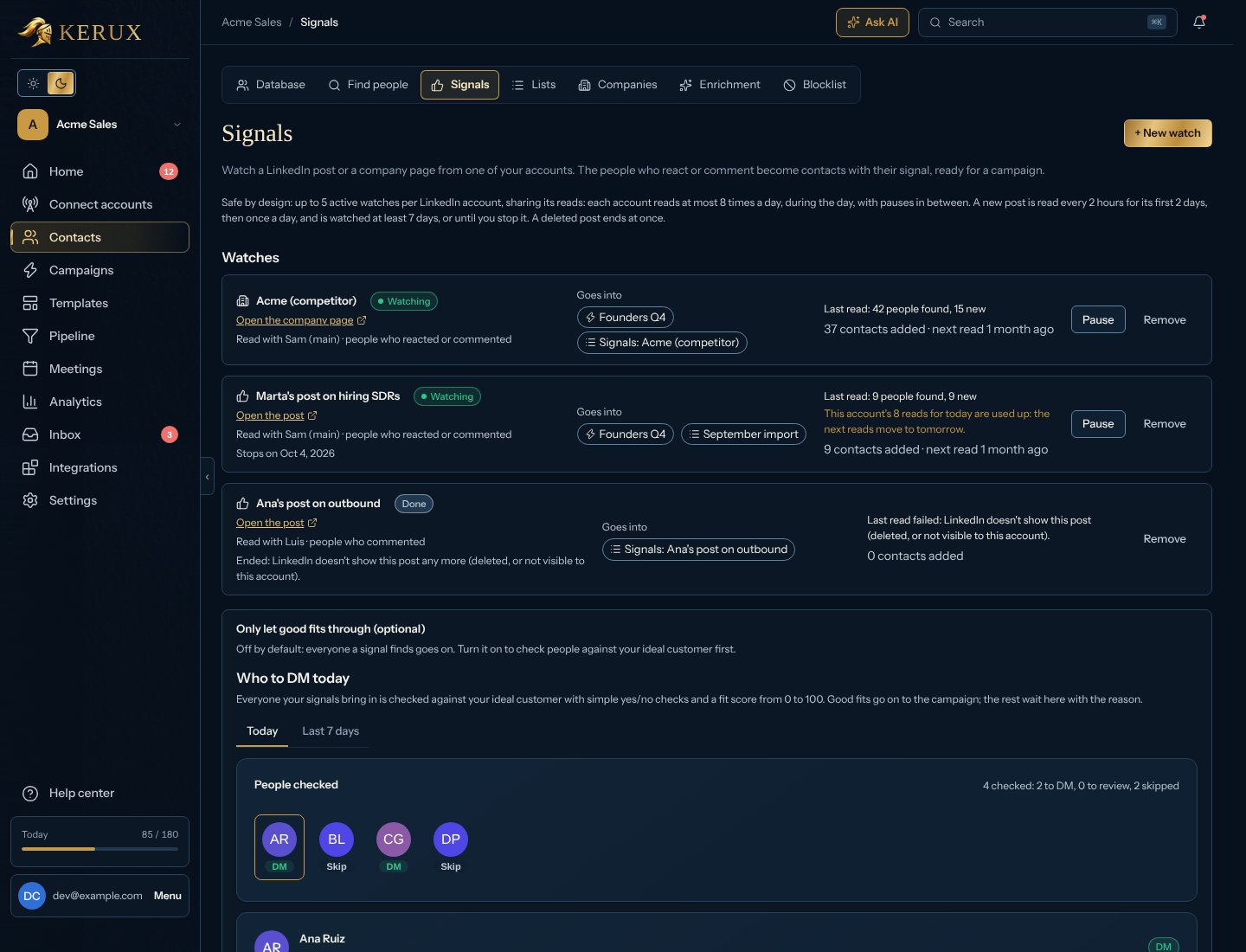
Watch a post or a company page
1
Copy the link
On LinkedIn, open the company page (for example a competitor) or the post, and copy the link from the address bar. For a post you can also use Copy link to post (short lnkd.in links work too).
2
Open the form
In a campaign, click + Add on the Trigger half of the start box (or in its Triggers tab) and choose Signal. Or go to Contacts > Signals and click + New watch. To start a new campaign from a signal, pick From a signal under New campaign.
3
Fill in the form
Paste the link and choose:
- Read with: the LinkedIn account that reads it.
- People who: reacted, commented, or both.
- Save them in: a new list for this watch, or one of yours.
- Stop watching after (posts only): 7 days (the default) or Until I stop it. A post is always watched at least 7 days. A company page has no end date: it is watched until you pause or remove it.
- And add them to: a campaign, or no campaign (list only). Inside a campaign, that campaign is already chosen.
4
Start watching
Click Start watching. The first read happens at the next free moment of that account, during the day.
Company signals (coming soon)
At the bottom of Contacts > Signals, the Company signals (coming soon) card describes what is planned: contacts when a US company you care about raises money, hires for a role you sell to, launches a product or partners with someone, or a leader joins or leaves. It isn’t available yet. To be told when it is, click Add me to the waiting list; the card then says You’re on the waiting list. It’s one sign-up for your whole organization.Use the signal in a message
Each contact gets{{contact.custom.signal}}, for example: Reacted to Acme’s post: “We’re hiring three new roles…”. Put it in a message, or ask Write with AI for a first line about it. Someone who reacts and also comments on the same post is added once, with their comment. Someone who engages with two watched posts keeps the newest signal.
Who to DM today
It’s off by default: everyone a signal finds goes on. To turn it on, go to Contacts > Signals, open Only let good fits through (optional) below your watches, fill in Your ideal customer, tick Check people from signals against this and click Save (later, Edit ideal customer changes it). Kerux then checks every person a signal brings in before anything is sent:- Role: their title or headline has a role you sell to (and none of the roles you never want).
- Company: their company matches your sectors and size.
- Location: they are in a country or city you target.
- Engagement: they commented or reacted (a comment counts more).
- Competitor: the post was from a competitor you listed.
- Timing, Repeat and Not in a campaign: active this week, seen in more than one signal this month, not already contacted.
People from your own signals tool
Already use another signals tool (Common Room, RB2B, Clay, Zapier, Make…)? Create a trigger URL (part of Pro and Agency, and the free trial; see Plans and billing) in Integrations > Developers > Trigger URLs with Check people against my ideal customer first, and send people to it. Put what they did incustom.signal (or a top-level signal): it shows on the person and in Who to DM today, and only good fits enter the campaign.
Start a campaign from LinkedIn events
A campaign can also start on its own when someone connects, writes, follows, invites or views the profile of one of your LinkedIn accounts. See Campaign triggers.Safety limits
Watching posts is reading LinkedIn from your account, so Kerux keeps it small and human: up to 5 active watches per LinkedIn account (paused and finished ones don’t count, but resuming one does), at most 8 reads a day per account shared by all its watches (fresh posts, under 2 days old, are read first), only during the day in the account’s timezone, and at least 45 minutes between two reads. When an account’s 8 reads for the day are used up, its watches show This account’s 8 reads for today are used up and the next reads move to tomorrow. Signals also never use more than half of what LinkedIn allows an account each day for the kind of read they do, so your campaigns always keep the other half; when that half is reached, the watches say This account’s LinkedIn reads are busy today and read again tomorrow. If reads keep failing, Kerux tries less often (every 4 hours, then once a day) and pauses the watch after 6 failed reads in a row.
Common problems
Ended: LinkedIn doesn't show this post any more
Ended: LinkedIn doesn't show this post any more
The post was deleted, or this account can’t see it, so the watch ended right away. The contacts it already found stay. To watch it from another account, start a new watch with that account.
Paused by Kerux: several reads in a row failed
Paused by Kerux: several reads in a row failed
Kerux couldn’t read the post or page 6 times in a row, so it paused the watch to save the account’s reads. Check that the LinkedIn account is connected in Connect accounts, then click Resume. If the next read fails too, it pauses again.
Paused: the person who set it up can't edit this workspace any more
Paused: the person who set it up can't edit this workspace any more
Watches read as the person who created them. Click Resume and it carries on as you.
Paused: its campaign is archived
Paused: its campaign is archived
When you archive a campaign, the signals that send contacts to it stop reading, so they don’t use the account’s daily reads. The contacts they found stay in their list. To keep watching the post or page, start a new watch for a list or another campaign.
Last read: no new post
Last read: no new post
The company didn’t post this week. Kerux checks again tomorrow.
The contacts didn't enter the campaign
The contacts didn't enter the campaign
If the campaign was never launched, they wait under Waiting for launch in its Contacts tab and enter when you turn it on. If you check people against your ideal customer, only good fits enter: the others are in Who to DM today with the reason. The contacts are always in the list too.
The account already has 5 active watches
The account already has 5 active watches
Each LinkedIn account has up to 5 active watches (watches that are done don’t count). When you add a sixth, Kerux lists that account’s active watches right in the form (when you resume a paused one, under that watch), with when each started and how many new people its last reads brought, and marks one as Suggested: the one that brought the fewest new people lately (or the oldest, if none has been read yet). Click Pause it or Remove it on any of them and your new watch is added right away with the same link (or the paused one resumes). The contacts it found stay either way. You can also use another account.