

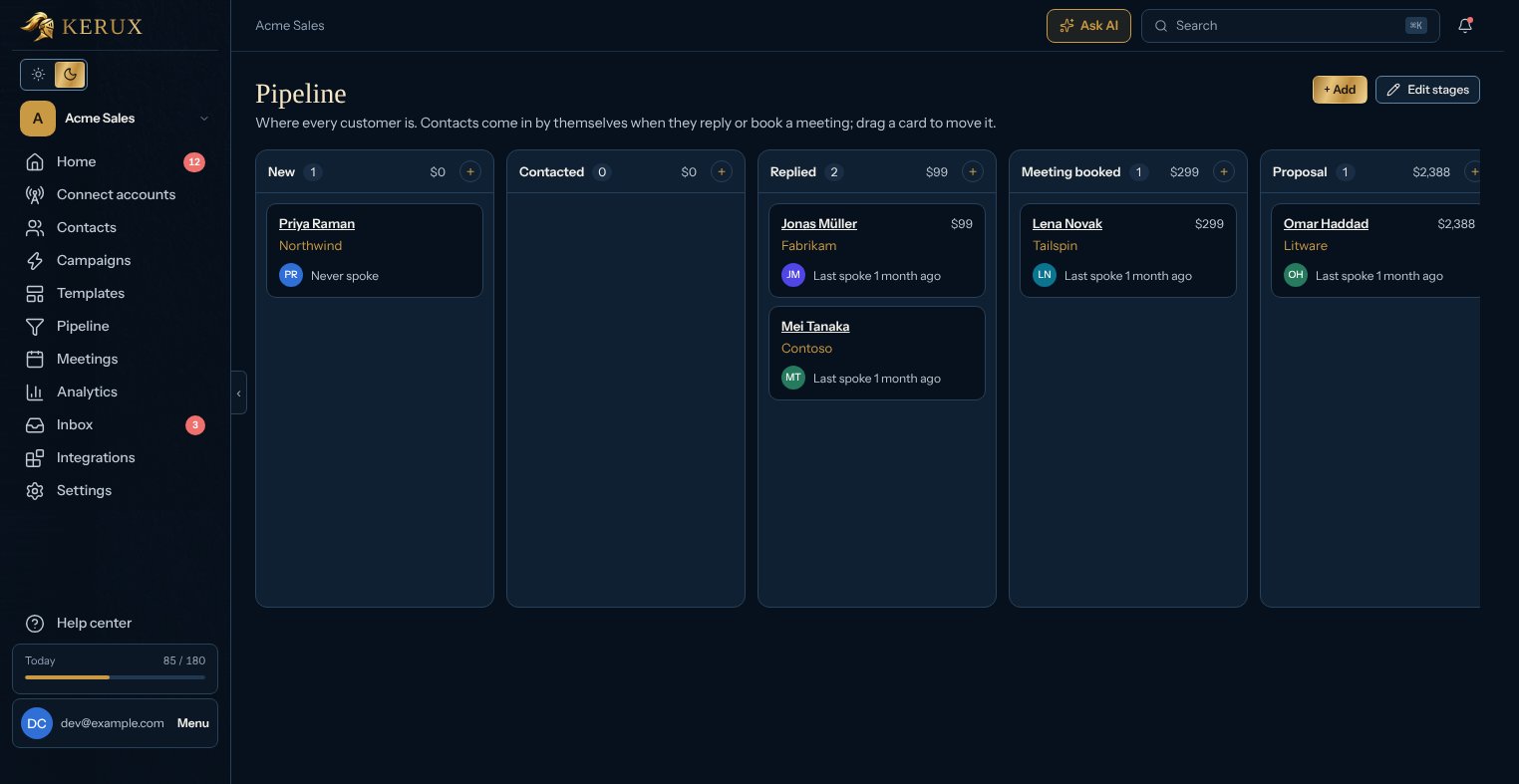
How contacts get on the board
- By themselves: when a contact replies (on LinkedIn, by email or by text) they move to Replied, and when they book a meeting to Meeting booked. A contact only moves forward on its own: never back, and never out of Won or Lost.
- From the board: click + Add at the top (or the + next to a column’s name). Search a contact you already have by name, company or email and click it, or fill in a new one (first name or company is enough; email, LinkedIn URL and Deal value (US$) are optional) and click Create and add. It goes on the stage you picked.
- From the contact: open a contact and pick a Stage in its Pipeline card, where you can also type the Deal value (US$), with cents if you need them. Pick Not on the board to take the contact off. Contacts don’t get on the board just because a campaign contacted them.
Moving a card
Drag it to another column. On a phone, pick the new stage in the menu on the card (with a mouse, the menu shows at the card’s bottom right when you point at the card). Pick Off the board to take a contact out. Every move is saved at once and shows on the contact’s history as Moved in the pipeline. Viewers see the board but can’t move cards.A deal’s page
Click a contact’s name on a card to open its deal. Next to its name, the stages are a row of buttons (the current one in gold, or green for Won and red for Lost): click one to move the deal there. On the left, two cards: Deal details (the deal value, the stage, the Expected close date, since when it’s in that stage and where the contact came from) and the contact, whose first and last name, email, phone, company and job title you can change right there (each one is saved when you leave the field). In the middle, History has everything that happened with the contact, newest first, with tabs for Emails, LinkedIn, Meetings, Notes and Activity (stage moves and campaign steps). On the right: who owns the deal, its tasks, a box to add a note, and its campaigns. Open the contact’s profile goes to the full contact page.Your own stages
Owners and admins click Edit stages to rename, add, remove or reorder stages, and to mark which ones mean Won or Lost. Click Save stages when you’re done. You need 2 to 20 stages. Contacts on a stage you remove move to the first one. While Replied and Meeting booked exist (also after you rename them), replies and meetings keep moving contacts there by themselves.Every email on the contact page
With an email inbox connected (see Connect an email inbox), every email with a contact goes on their history, with its subject and the start of the text:- emails you send by hand from that inbox (outside Kerux) to a contact, as Email sent;
- emails a contact sends you, from their email or from any other address Kerux knows for them, as Replied by email.
With the API and webhooks
GET /v1/pipeline returns the board, PUT /v1/leads/{id}/stage moves a contact or sets its value and expected close date (deal_close_on), GET /v1/leads/{id}/history returns a deal’s history, and owners and admins change the stages with PUT /v1/pipeline/stages (a key with the admin scope). Each move, by hand or by itself, sends the webhook event lead.stage_changed. To start a campaign when a contact moves, use the Pipeline stage changed Kerux event (see Start a campaign from what happens in Kerux).