

Pro plan. LinkedIn broadcasts are on every plan. Email and WhatsApp broadcasts are part of Pro and Agency (and the free trial). Services you connect with your own account and pay to that provider directly can be used during the free trial. Add-ons billed by Kerux (email inboxes and WhatsApp numbers) are not included in the free trial. On Starter, sending one says This is part of Pro. Upgrade in Settings > Billing; anything you already set up keeps working. See Plans and billing.
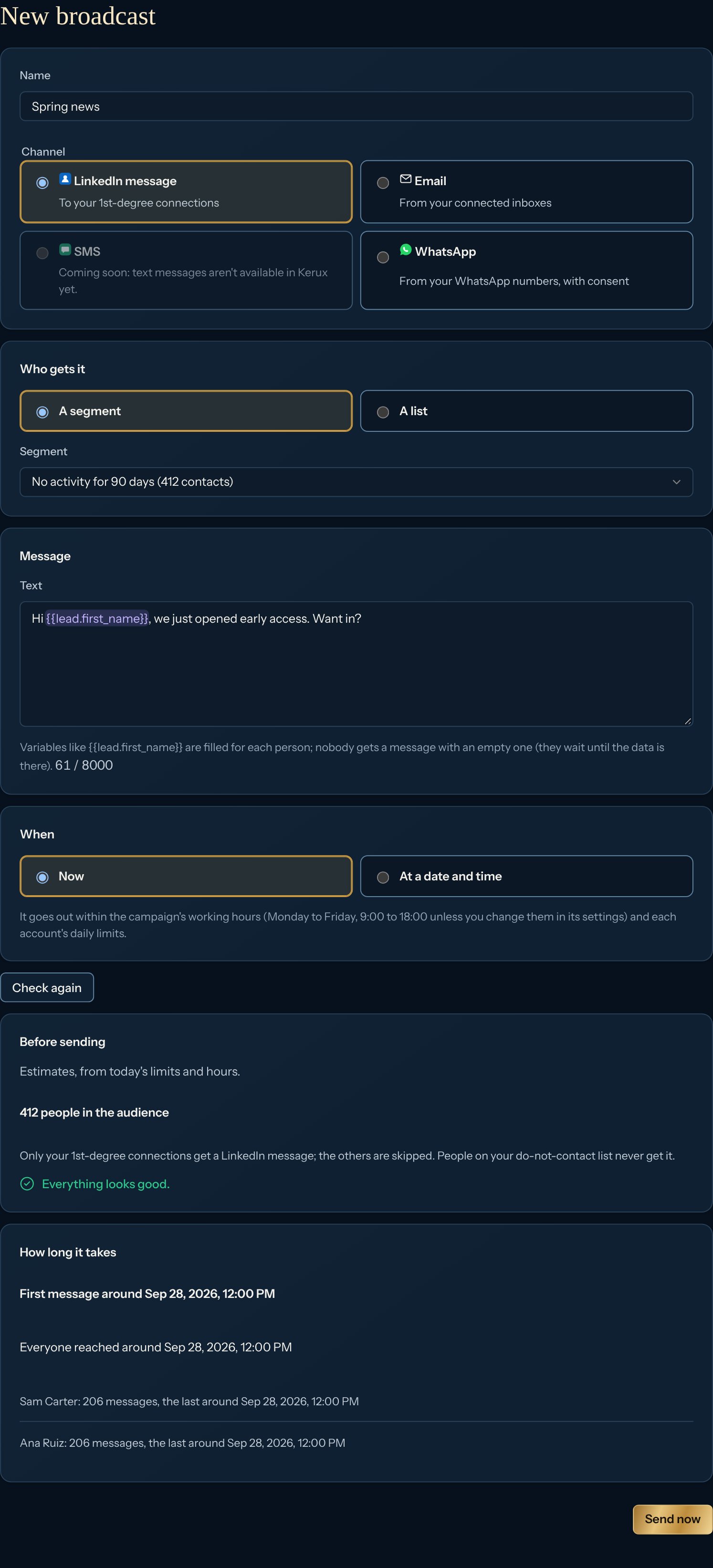
Send a broadcast
1
Open Broadcasts
Click Campaigns, then Broadcasts, then New broadcast. Or, in Contacts > Segments, click Broadcast next to a segment.
2
Choose the channel
- LinkedIn message: only your 1st-degree connections get it; the others are skipped.
- Email: from your connected inboxes, ending with the short line on how to unsubscribe and your postal address (see Write and send emails). It needs a subject, and a postal address in Settings > Sending rules.
- SMS: coming soon. The card says Coming soon: text messages aren’t available in Kerux yet. and can’t be picked.
- WhatsApp: from your connected WhatsApp numbers (your own numbers, connected with a QR code: see Connect WhatsApp), only to people with recorded consent, at each number’s daily pace (up to 100 messages and 40 new chats a day, fewer in a number’s first weeks: see Limits). Keep WhatsApp broadcasts to people who know you and expect your message: cold mass messages get numbers banned.
3
Choose who gets it
A segment or A list. The number of contacts in each is shown. One broadcast reaches up to 5,000 people (the first 5,000 added to Kerux). For a bigger audience, send it, then click Send to the next 5,000 on it (see More than 5,000 people).
4
Write the message
Variables like
{{contact.first_name}} are filled for each person (see Variables). Someone with an empty variable and no default waits until the data is there instead of getting a message with a hole.5
Choose when
Now, or At a date and time (in your computer’s time zone). Either way it goes out within the campaign’s working hours: Monday to Friday, 9:00 to 18:00, unless you change them in its settings.
6
Review, then send
Click Review. The draft is saved and Kerux shows how many people it reaches, the same preflight as a campaign launch (problems in red, each with a Fix link) and how long it takes: for LinkedIn, when the first and last messages go out per account; for email and WhatsApp, how many inboxes or numbers send it, how many a day and how many working days it takes. Then click Send now or Schedule.
More than 5,000 people
When the audience has more than 5,000 people, the review says (the first 5,000; once it is sent, “Send to the next 5,000” on it reaches the rest). After you send it:1
Open the broadcast
Click Campaigns > Broadcasts and open the one you sent.
2
Click Send to the next 5,000
A new broadcast opens with the same channel, audience and message, named (next 5,000). It leaves out everyone the first one went to, so it reaches the next 5,000 people in the audience and nobody gets it twice.
3
Review, then send
Change the message or the time if you like, then Review and Send now or Schedule. If the audience is still bigger, the new one shows Send to the next 5,000 too, and each one leaves out everyone the earlier ones went to.
Follow it
Campaigns > Broadcasts lists them: Draft, Scheduled, Sending, Done or Paused. Open one to see how many people it went to, Got it, Still to go (waiting for limits, working hours or missing data) and Didn’t get it (not a connection, no email or phone, sending rules). Open its campaign shows each person’s status and the reason, like any campaign, and that is where you pause it. A broadcast also shows in your Campaigns list, with the same name.API
POST /v1/broadcasts creates a draft, GET /v1/broadcasts/{id}/check returns the preflight and the forecast, and POST /v1/broadcasts/{id}/send sends it (once; it starts everyone in the audience, so the key or connected app needs the permission to start campaigns, enrollments:write, too). For the next 5,000, create a new one with continues_from set to the sent broadcast’s id; a broadcast says more (its audience had more people) and continued_by. See the API reference.