

1
Choose the account and where to search
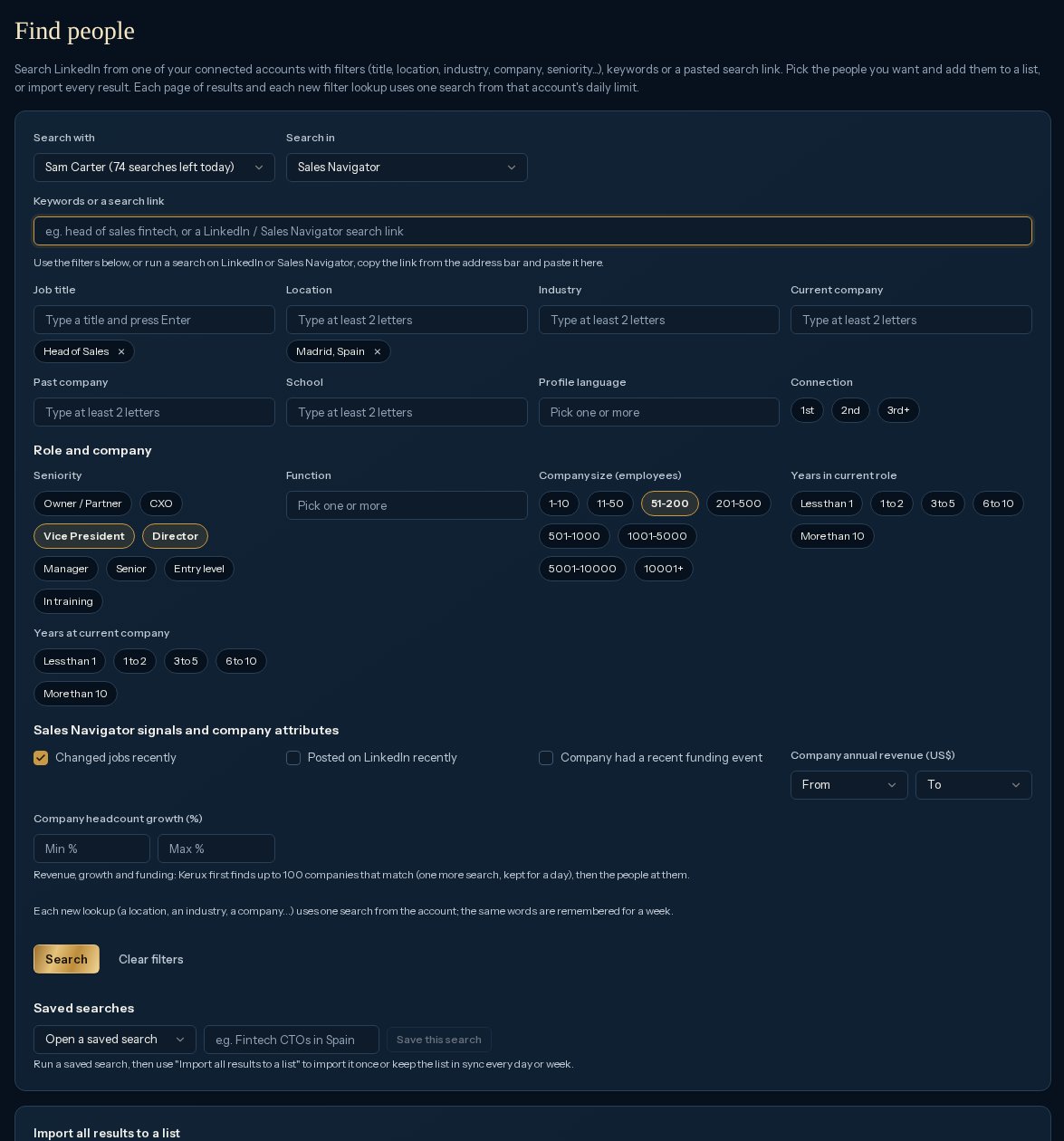
Under Search with, pick the LinkedIn account (it shows how many searches it has left today). Under Search in, pick LinkedIn, Sales Navigator or Recruiter: only the products that account has can be picked. With Sales Navigator you get the most filters.
2
Set the filters
Type keywords if you want, then fill the filters: Job title (type a title and press Enter), Location, Industry, Current company, Past company and School (type at least 2 letters and pick from LinkedIn’s suggestions), Profile language (pick from the list), and Connection (1st, 2nd, 3rd+). With Sales Navigator or Recruiter, Role and company adds more (see the table below). Each value shows as a pill; click its x to remove it. A filter takes up to 10 values.
3
Search
Click Search. Kerux shows about how many results LinkedIn has. Click Load more for the next page.
4
Pick and save
Tick the people you want (those Already in your database are marked), choose a list or create one, and click Add … to list (for example Add 3 to list).
Which filters each product has
A filter the chosen product doesn’t have is shown greyed out with Needs Sales Navigator and what to do: switch Search in to Sales Navigator if the account has it, or paste a Sales Navigator search link and pick an account that has it.
Revenue, headcount growth and funding are company attributes in Sales Navigator. Kerux first finds up to 100 companies that match them (one more search, remembered for a day), then searches the people at those companies. They can’t be mixed with Current company: remove one or the other. If no company matches, Kerux says so: widen the range or remove one.
Searches and your daily limit
Every call to LinkedIn is one search from the account’s daily limit: each page of results, and each new suggestion lookup when you type in a filter (a location, an industry, a company…). Kerux remembers the suggestions per workspace for a week, so the same words don’t use a search the second time, and fixed lists (functions, profile languages) are read once. Suggestion lookups never use more than half of the account’s LinkedIn search allowance for the day; the rest stays for your searches.Saved searches
Under Saved searches, type a name and click Save this search to keep the filters (saving with a name you already used replaces it). Open a saved search puts its filters back in the form (and picks the account it was saved with); Delete removes the one that’s open. Saved searches are shared with everyone in the workspace, up to 50 per workspace. To import everyone a saved search finds, open it, click Search, then use Import all results to a list below the form: once, or kept in sync every day or week (see below).Import every result of a search
Search with filters (or a saved search), or paste a search link from LinkedIn, Sales Navigator or Recruiter: the Import all results to a list card appears.1
Choose how many and where
Pick the account under Search with first: the import reads from it. Then pick Up to 100 / 250 / 500 / 1000 people and a list, or New list and type its name.
2
Start the import
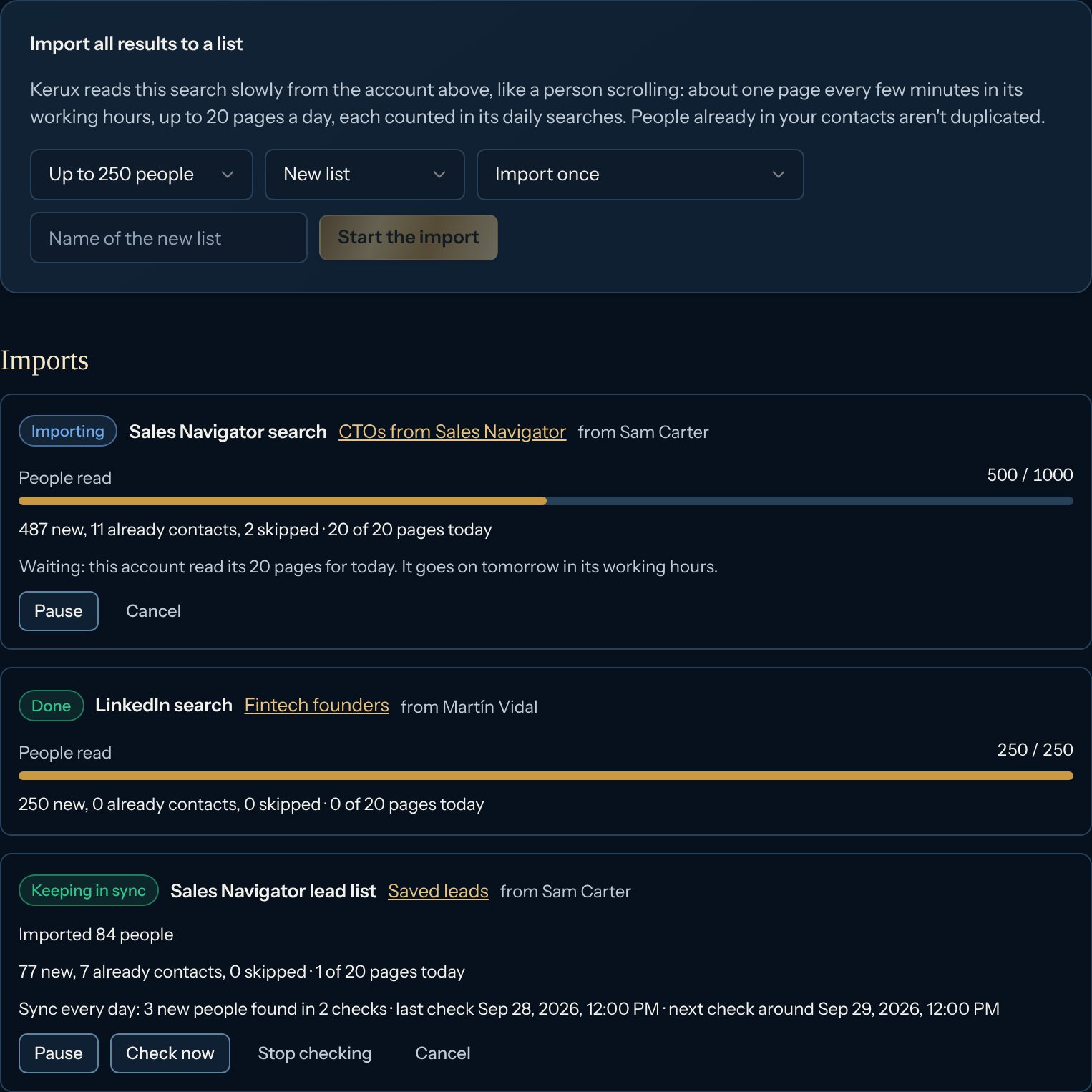
Click Start the import. Kerux reads the search slowly from that account, like a person scrolling: a page every few minutes in the account’s working hours, at most 20 pages a day per account. Each page counts as one search in the account’s daily limit (shared with your own searches), and imports never use more than half of the account’s LinkedIn search allowance for the day.
3
Follow it
Imports lists every import, including those from filters (shown with the saved search’s name, or as LinkedIn search with filters, Sales Navigator search with filters or Recruiter search with filters). Each shows how many people were read, how many are new, how many were already contacts (not duplicated, just added to the list), how many were skipped, the pages read today and when the next page is due. When it waits, it says why: today’s 20 pages are done, outside working hours, the account’s searches for today are used, half of today’s search allowance is used, the account is paused or disconnected, or another import is reading from the same account. Use Pause, Resume or Cancel. It keeps going on its own, even after an app update.
A Sales Navigator link needs an account with Sales Navigator, and a Recruiter link an account with Recruiter. Open Profile (free InMail) is saved with each person when LinkedIn says it.
Import a Sales Navigator lead list
Saved leads in Sales Navigator can come to Kerux too. In Sales Navigator, open Lead lists, open the list and copy the link from the address bar (it looks likelinkedin.com/sales/lists/people/...). Paste it in Find people: the card says Import this Sales Navigator lead list. It works like a search import (same pace and limits), 25 people a page, newest saved first. The account under Search with needs Sales Navigator.
Keep a list in sync
On the import card, Check for new people chooses what happens after the import:- Import once: the import ends when it has read everyone (or reached the number you picked).
- Import, then check every day or every week: after the import, Kerux runs the search (the link or the filters) again on that schedule and adds only the people who aren’t in the list yet. A check reads a few pages at most: it stops at the first person already in the list (contact lists, newest first) or after two pages with nobody new (searches). It follows the same limits as any import.
Common problems
It asks me to connect a LinkedIn account
It asks me to connect a LinkedIn account
Searches run from your own account, so connect one first.
No searches left
No searches left
Each page of results, and each new suggestion lookup in a filter, uses one search from that account’s daily limit. Try again tomorrow or use another account. Suggestions you already used still work.
Suggestions don't appear when I type
Suggestions don't appear when I type
Type at least 2 letters. If it says half of today’s search allowance is used, pick values you used before (they’re remembered) or try tomorrow.
Nobody found
Nobody found
Try fewer filters or other keywords. With revenue, growth or funding, no company may match: widen the range or remove one.
Some people were skipped
Some people were skipped
They’re on the blocklist or their profile link isn’t valid. The message says how many.
The import is waiting
The import is waiting
It says why under the import: it goes on by itself the next day (daily pages or searches used) or in the account’s working hours. One import reads at a time per account; the others wait their turn.
The import says Stopped
The import says Stopped
The reason shows under the import. If LinkedIn didn’t answer several pages in a row, click Resume to try again. If the person who started it can no longer add contacts in this workspace, or its LinkedIn account was removed, start a new import.
It says the account already keeps 5 imports in sync
It says the account already keeps 5 imports in sync
Each LinkedIn account can keep up to 5 imports checking for new people. Click Stop checking on one of that account’s imports, or start this one with Import once.