

Pro plan. Email steps are part of Pro and Agency. Each inbox is a paid add-on (US$7 a month), not part of the free trial. On Starter, a campaign that already sends email keeps sending; adding or changing an email step shows This is part of Pro with an Upgrade to Pro button. See Plans and billing.
The step’s panel
Click the Send email step on the canvas. Its panel opens on the right, with the step’s mark and name on top, then numbered sections in this order:- Send from: the inbox the email goes from. The row shows the one picked, or The contact’s account owner’s inbox (automatic). Click the row to change it, and to turn Send follow-ups in the same thread on or off.
- Subject: always open. The Insert button beside it holds the variables, your templates and Write with AI.
- Message: always open, with Variables, Templates and Write with AI above the box. The (i) next to Message says what every email gets (one short line on how to stop the emails, and your postal address under it) and how emails are sent.
- Preview (How it reads for a contact): click the row to see the email right there (see Preview).
- Handle missing data: shown when the subject or message uses variables. The row says how many variables have no fallback, or that all are covered. See Variables.
- How you write this email: Write it here or Use a template, and the message format (Text, Rich text or HTML). The row shows your choice, for example Write it here · Text.
- Wait before this step: how long Kerux waits after the previous step. The row shows the wait, or None, right after the previous step.
- Test and run: Try it on one contact before it runs for everyone.
Write the message
Type the subject and the message in their sections. To change the format, open How you write this email and pick one:- Text: plain text, sent as written. This is how every email step starts.
- Rich text: bold, italic, underline, links, lists, alignment and pictures, with buttons on top of the box.
- HTML: write or paste your own HTML (for example an email designed in another tool). Variables work inside it.
{{contact.first_name}}, {{contact.company}}, or the contact’s email address as {{email}}. For the subject, use the Insert button beside it.
The contact’s email is always
{{email}} (Email in Variables). The old {{lead.email}} no longer works. Kerux already changed it to {{email}} in every campaign, template and rule that used it. If you type or paste {{lead.email}} in a text, the step says a variable is written incorrectly: change it to {{email}}.Pictures and GIFs
- Click Picture or GIF (under a Text message, or in the rich text buttons). In Add a picture, paste the Picture address (animated GIFs work too) or click Upload a picture (PNG, JPG, GIF or WebP, up to 1 MB; 25 MB per workspace), or pick one you uploaded before under Your pictures. Add a Description (shown when pictures are off) and, if you want, a Link when clicked (optional): the picture then opens that page, for example your video or booking link. Click Insert. In a Text message, this makes it rich text.
- Or copy a picture or a GIF with its link from a web page or another email and paste it into the message. Kerux keeps it (a plain text message becomes rich text).
https:// and keep the picture online. A picture with no web address (for example one copied from your computer) isn’t kept.
Preview
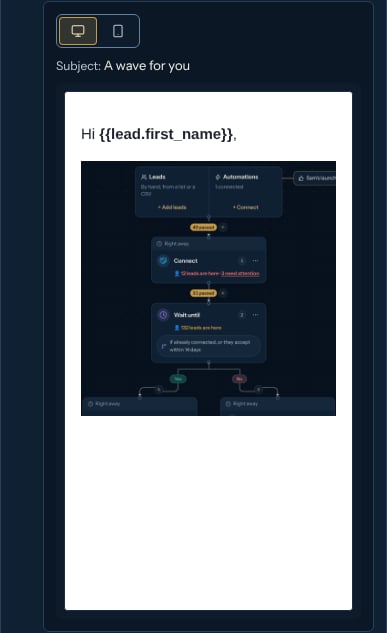
Click the Preview row (How it reads for a contact) to open the email inside that section, as the contact will see it: pick a contact in Preview for, and switch between the Desktop and Phone buttons (the screen icons). It shows the subject and the message with that contact’s variables filled in, and says which ones are empty for them. Click the row again to close it.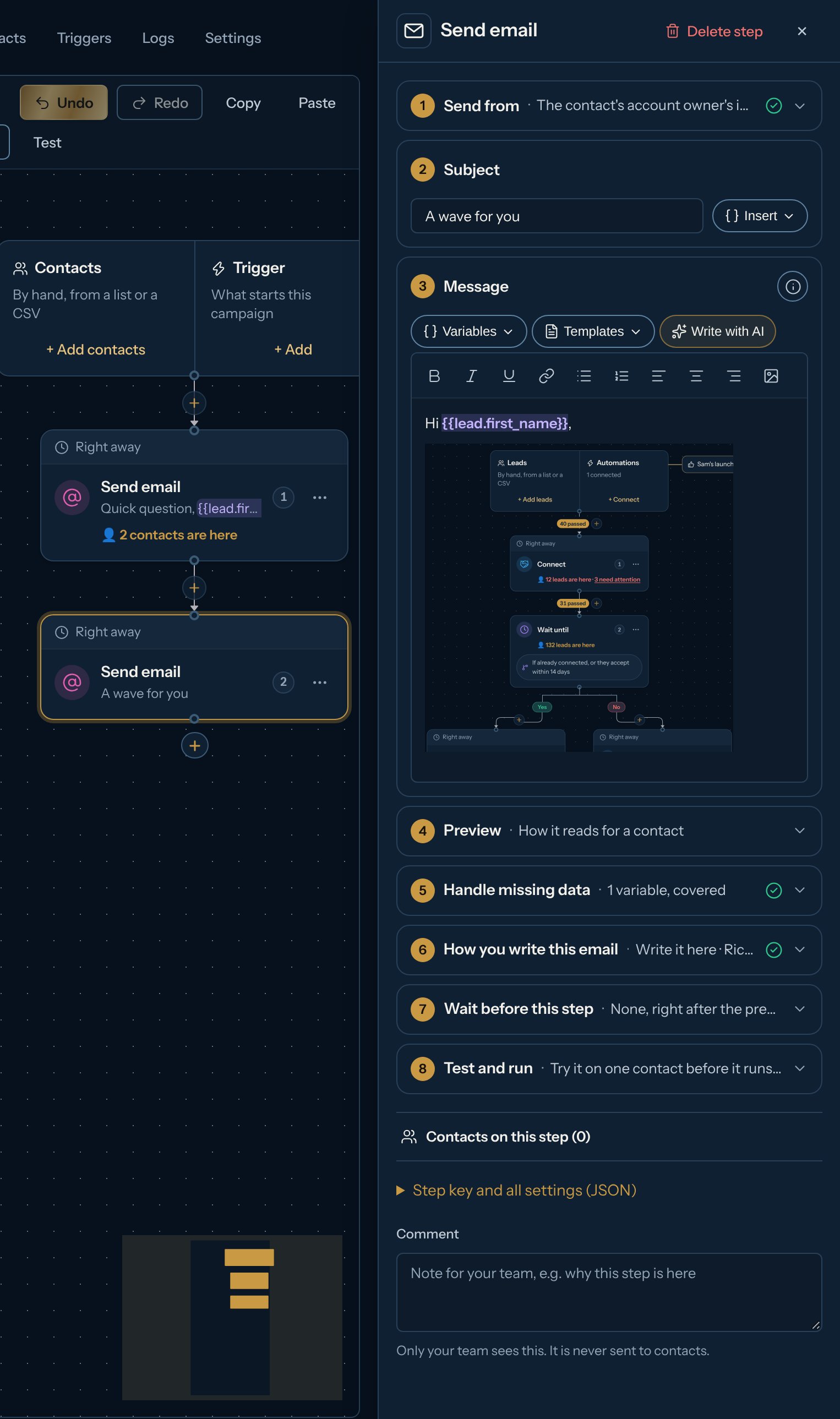
What Kerux removes
Emails can’t carry anything that runs code. When your changes go live and again when each email is sent, Kerux keeps only safe HTML: text, formatting, links (https://, http://, mailto:, tel:), pictures, tables and styles. It removes scripts, forms and buttons, frames, embedded objects, video and audio players, event handlers and unsafe links such as javascript:. To show a video, use a picture or GIF with a link to it. A variable can’t add any of these either: values are written as plain text.
How it is sent
- Text goes out as you wrote it, with a simple HTML copy so links are clickable.
- Rich text and HTML go out as an HTML email, with a plain-text copy written from it for mail apps that only show text (links show their address in parentheses, pictures their description).
- Opens and clicks are tracked on both, unless you turned tracking off in the campaign’s settings (see Email opens and clicks).
- An empty variable never goes out: the contact waits and shows what is missing, like any message. The checks before launch count these contacts for email steps too. See Variables.
The footer and the unsubscribe link
Every campaign email ends with one short line on how to stop the emails, for example: Not interested? Reply “unsubscribe” and I won’t email you again. Under it, on one small line, goes your postal address from Settings > Sending rules (US law, CAN-SPAM, requires a postal address in every commercial email). Nothing else is added: no company name, banner or long link. In HTML emails the word is also a link for that email, and mail apps get a one-click unsubscribe. Pick the line’s language (English, Spanish, German or French) in Settings > Sending rules. The Preview shows your email without it, and replies you write in the inbox have nothing added. Without a postal address, campaign emails don’t go out: the checks before launch block the campaign, and emails already on their way wait until you add it (see Set who sends).- The link (HTML emails) opens a page with your company’s name and one Unsubscribe button (nothing happens just by opening it, so mail scanners never unsubscribe anyone). One click and that address never gets an email from this workspace again, from any campaign; the contact leaves the campaign that sent it.
- Mail apps that show their own Unsubscribe next to the sender (Gmail, Yahoo, Apple Mail) get it for every campaign email: one click there does the same, with no other page.
- A reply that says “unsubscribe” (or “remove me”, “baja”, “abmelden”, “désinscrire”) does the same. Kerux reads only what the person wrote, never the email they quoted.
- An address that unsubscribed is skipped by every Send email step (the contact goes on along “no email address”, and their history says Email not sent: this address unsubscribed), and is never added to Smartlead.
- The workspace’s do-not-contact list is in Settings > Sending rules. See Sending rules and consent.