

Pro plan. Connections and presets (Clay, Smartlead, Sendspark, any API) are part of Pro and Agency (and the free trial). On Starter, Connections shows Part of Pro with an Upgrade to Pro button. Anything you already have keeps working on every plan. See Plans and billing.
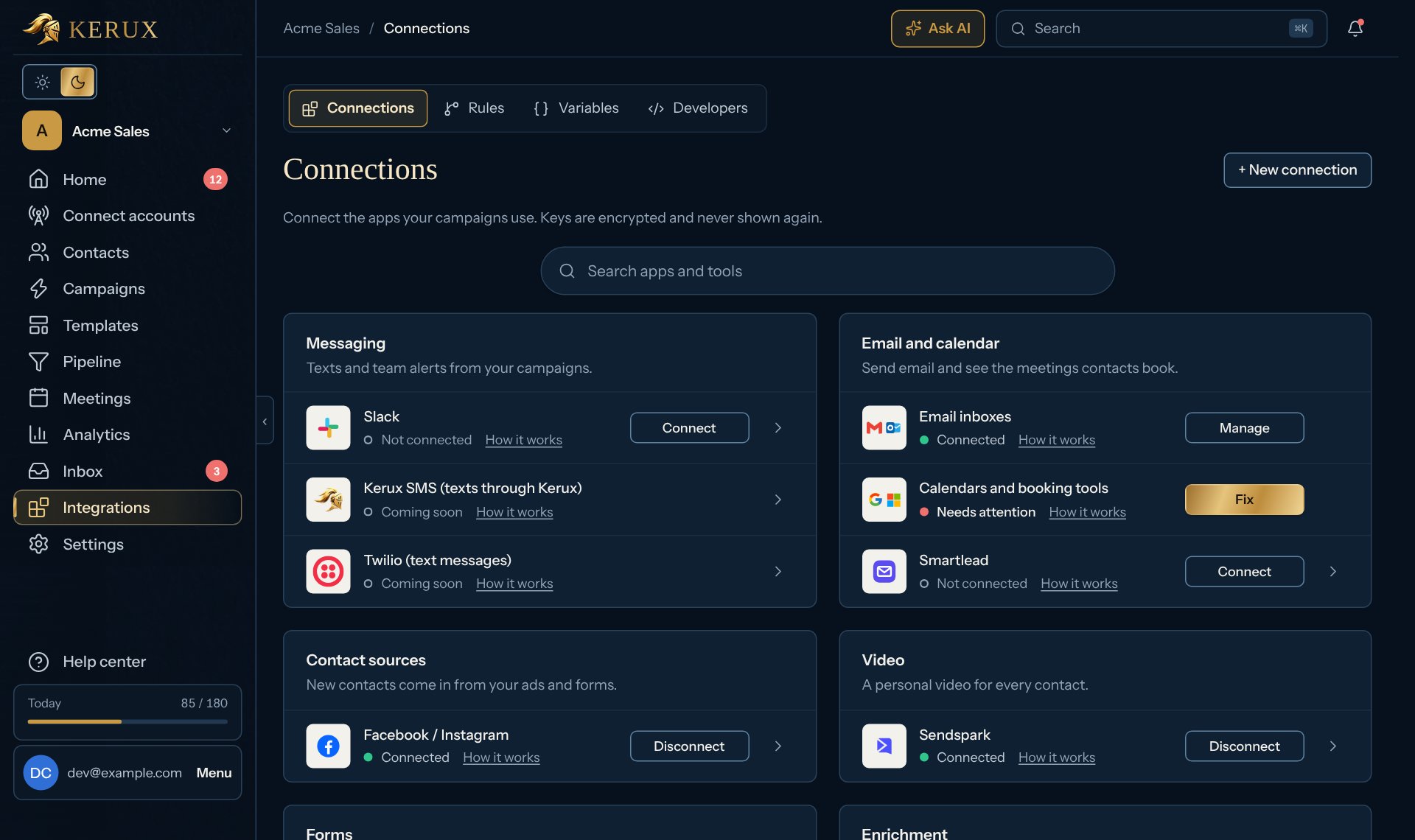
Click an app’s name (or the arrow at the end of its row) to open its side panel with the details: which account is connected, the Facebook Pages that bring contacts in, the Zapier or Make steps, saved keys, Test connection, Edit and Delete. If the page reloads, the same panel opens again.
Slack and Facebook / Instagram connect with one button, no key to copy. See Slack and Facebook and Instagram lead ads. Text messages are coming soon: their rows say Coming soon and open nothing yet. Email inboxes and Calendars and booking tools take you to Connect accounts, where inboxes are connected (see Connect your email). Only workspace owners and admins connect one-button apps; members see Ask an admin. Keys are encrypted and never shown again.
1
Pick the app
In Integrations > Connections, click Connect on the app’s row. For any HTTPS API, click Connect on Custom API (under Developers), or + New connection at the top to see every ready-made app.
2
Paste the key
The side panel shows what the app needs and where to find it (for example Sendspark’s API key and API secret). Paste it and click Save. A custom API asks how it signs in (API key, bearer token, basic auth or query parameter) and its Base URL.
3
Test it
Click the app’s name on its row to open its panel, then click Test connection. Kerux makes one read-only call and tells you if the key works.
Common problems
Test connection says the key was rejected
Test connection says the key was rejected
The row says Needs attention: click Fix, then Edit. Copy the key again from the service (no spaces at the ends) and save. Campaign steps that use a rejected key wait with the reason shown until it works.
Saving an edit asks me to type the key again
Saving an edit asks me to type the key again
For your safety, a saved key is never sent to a new address. When you change a connection’s Base URL to another website, How it signs in, or the Header name or Parameter name, type the key again in the same edit, then click Save. Changing only the path on the same website doesn’t ask for it. Slack and Facebook / Instagram (one-button connections) can’t be moved this way.