

Pro plan. Opens and clicks come from campaign emails, and email steps are part of Pro and Agency. Each inbox is a paid add-on (US$7 a month), not part of the free trial. See Plans and billing.
Turn it on or off
Tracking is on by default for every campaign. It covers the emails of the campaign’s Send email steps.1
Open the campaign's settings
Open the campaign and click the Settings tab.
2
Use the switch
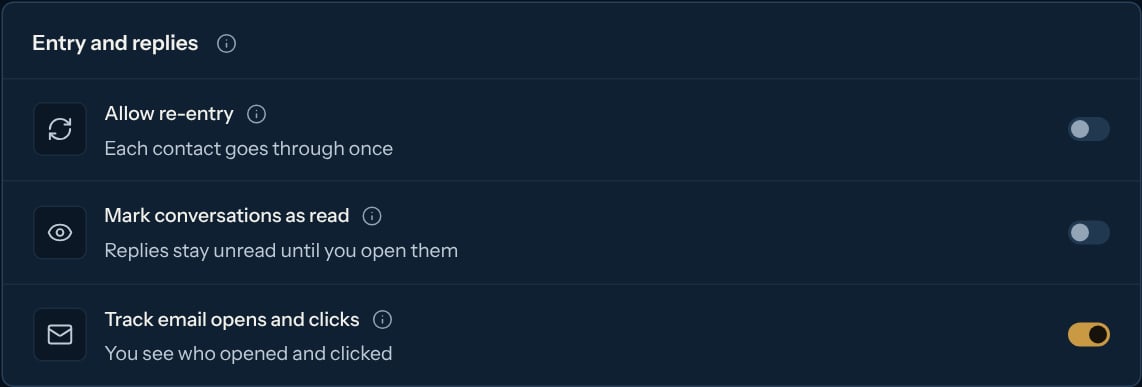
In Entry and replies, turn Track email opens and clicks on or off. It’s saved right away. The (i) next to it explains what tracking adds to your emails.
How it works
Each tracked email carries a tiny invisible image, and its links go through a tracking address before reaching yours. When the email’s image loads or a link is clicked, Kerux hears about it from your inbox’s connection.- Only web links count as clicks. That includes the links in rich text and HTML emails, and a picture or GIF with a link (see Write and send emails).
- A click always counts as an open too, because the mail app may have hidden the open.
- An open or a click is never a reply: the campaign keeps going.
Where you see it
- The contact’s timeline: “Opened your email” (once per email) and “Clicked a link in your email” (once per link).
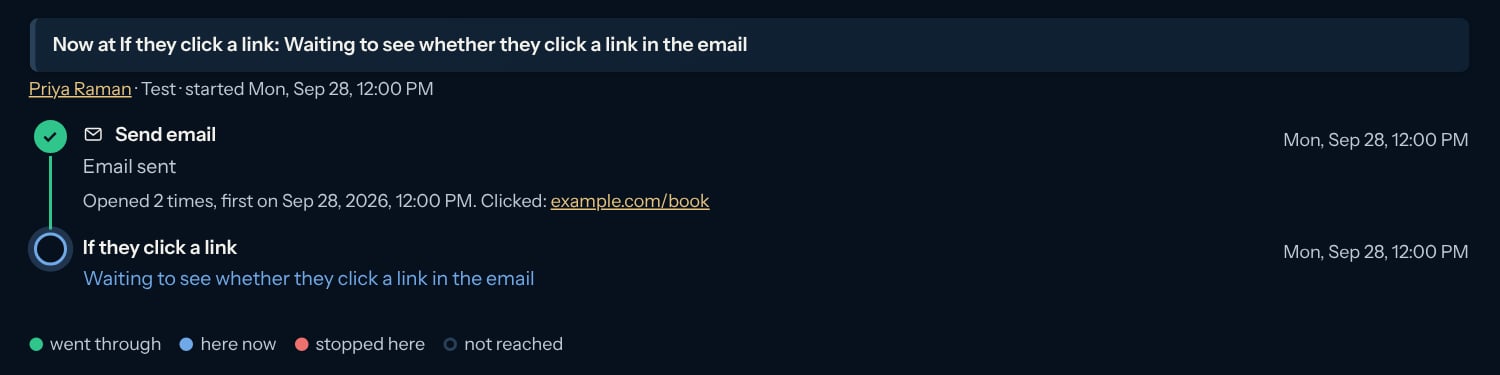
- The contact’s journey: on the email step, how many times it was opened, when first, and the links clicked.
- The Send email step’s panel (click the step on the canvas): how many emails it sent, opened and clicked, under the title.
- Analytics: the Emails card shows the campaign emails sent in the period and the share opened and clicked (for example “55% opened · 15% clicked”). It shows once you have sent emails in that period. The rates count only emails sent with tracking on, and the card says how many those were (“tracked: 36 of 40”), so turning tracking off in a campaign doesn’t lower them. Opens can be over- or under-counted (privacy proxies open emails on their own, image blocking hides opens); clicks are more reliable.
Follow up only with the people who engaged
In an automation, the If they react step can wait for an email open or a click instead of a LinkedIn reaction.1
Add the step after a Send email step
Click the + under the email step to open Add a step, then in Conditions > Contact actions pick Opened your email (waits 2 days) or Clicked a link in your email (waits 3 days).
2
Set the wait
In the step’s panel, change Wait if you like. Wait for shows The email opened or A link in the email clicked (you can also add If they react from Steps > Timing and pick it there).
3
Connect the paths
The card reads, for example, “If they click a link within 3 days”. Connect its paths: Opened / Not opened (some mail apps hide opens), or Clicked / No click. You can also add Replied.
- The contact goes Opened or Clicked as soon as it happens during the wait, or at once if it already happened since they entered this campaign. Only this campaign’s emails count: opening an email from another campaign doesn’t move the contact here.
- When the wait ends without it, the contact goes Not opened or No click.
- A reply during the wait ends the contact’s path, like any reply (or follows Replied, if you added it).
- With tracking off in the campaign, its emails never report an open or a click. The launch check stops you and says so, with Fix to the campaign’s Settings to turn Track email opens and clicks on.
Start another campaign
The Kerux events Email opened and Email link clicked start a campaign when a contact opens one of your campaign emails (once per email) or clicks a link in one (once per link). Email link clicked can wait for Only links containing some text, for examplecalendly.com or /pricing, and its steps can use the link as {{trigger.clicked_link}}. See Start a campaign from what happens in Kerux.
For other tools, the email.opened and email.clicked webhooks fire at the same moments. See Webhooks.
Privacy
Tracking tells you when someone opened an email or clicked a link. For each open or click, Kerux keeps only the time, the link and whether it looked automatic. It never stores the person’s IP address or device. Depending on where your contacts are, tracking may need their consent or a mention in your privacy notice (for example under GDPR). Check what applies to you, and turn tracking off for the campaigns where you don’t want it.Common questions
A contact replied, but Kerux says Not opened
A contact replied, but Kerux says Not opened
Their mail app hid the open (it blocked images). The reply is what counts: campaigns always react to it.
Nobody ever opens or clicks
Nobody ever opens or clicks
Check that Track email opens and clicks is on in the campaign’s Settings. Emails sent while it was off are never tracked.