

1
Open the launch screen
In the campaign’s Builder, click + Add contacts on the start box (the Contacts half), or click Add contacts at the top of the Contacts tab. The panel opens beside the campaign.
2
Choose who enters
- From a list: a list you imported or saved (lists a signal made for itself come in through that signal, the campaign’s trigger)
- From a segment: everyone in a saved filter now. Tick Also add people who match later to keep adding new matches, once each (see Smart segments)
- Pick contacts one by one
- Add contacts by hand: paste a LinkedIn profile URL per row (name and company are optional)
- All my contacts: everyone not in this campaign yet
- Upload a new file (goes through the import, then comes back here)
3
Read the Preflight
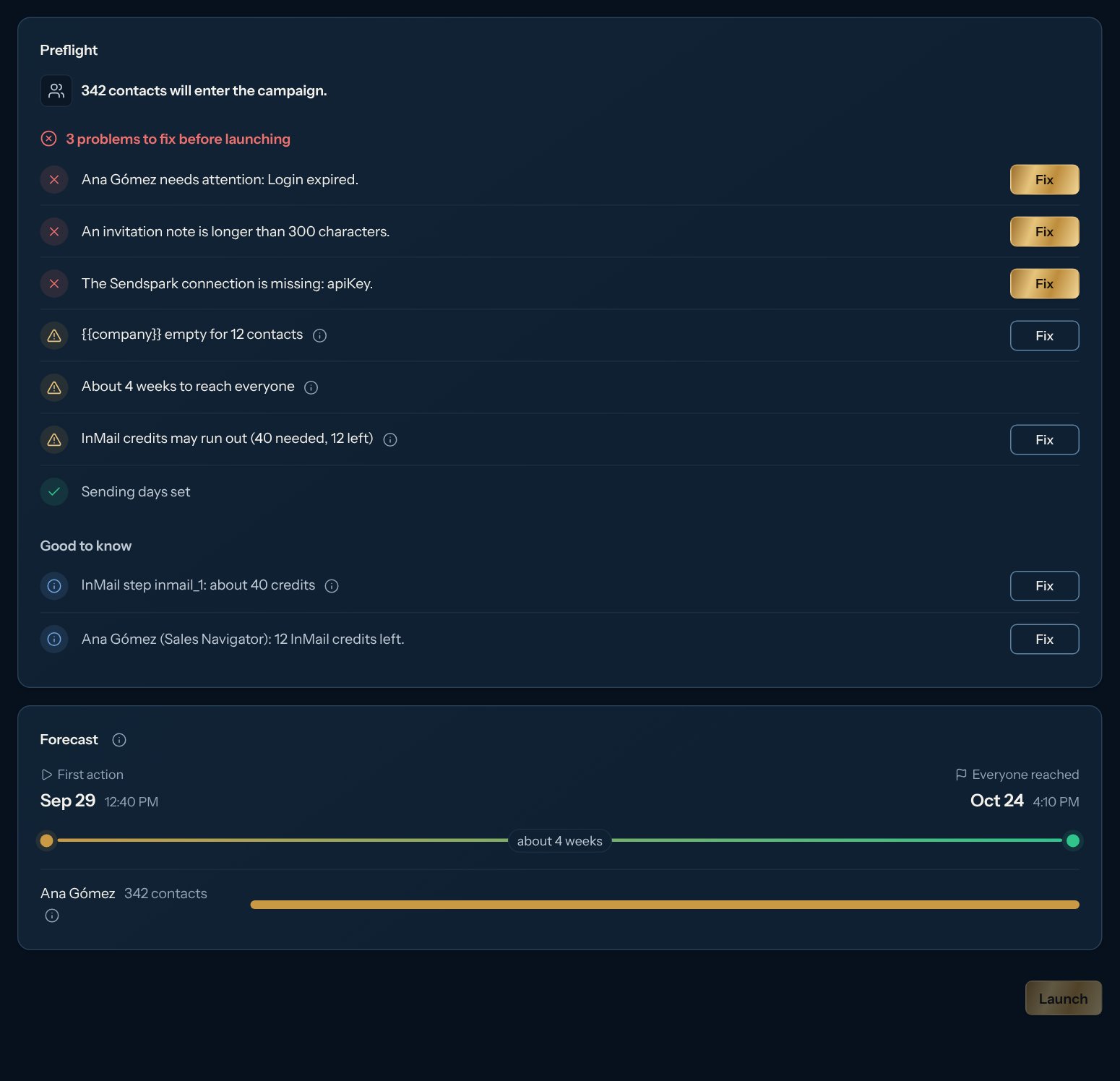
It’s a checklist, one line per check: a red cross blocks the launch, a gold mark is worth a look (the launch is still allowed), a green check means that part is ready (LinkedIn accounts, steps and messages, connections, sending days), and Good to know lines are just information. Lines with something to fix have a Fix button that takes you there, and a shortened line has an (i) with the full explanation (hover it on a computer, tap it on a phone). For example: a LinkedIn account needs to reconnect, an invitation note is longer than 300 characters, a variable is empty for some contacts, or a campaign with an email step while your postal address in Settings > Sending rules is empty (Who sends is missing: a postal address). A campaign with a Send SMS step shows Text messages: coming soon: text messages aren’t available yet, so remove the step (contacts who reach it wait there, with nothing sent or charged, until texting opens). Warnings say, for example, how many contacts still need their consent for texts or WhatsApp confirmed: Kerux can’t know who agreed, so click They agreed on that line to record it for the contacts you’re adding, in one click (only if they really agreed; contacts without a phone or on your do-not-contact list are left out and the message says how many). If every contact your workspace adds agreed, an owner or admin can turn on Contacts’ consent in Settings > Sending rules instead. Until it’s recorded they wait at that step. Warnings also say how many are on your do-not-contact list (they won’t be contacted). See Sending rules and consent. After fixing, click Check again.
4
Check the Forecast
A small timeline: the First action on the left, Everyone reached (every contact got a first touch) on the right, and how long it takes in between. Under it, one bar per LinkedIn account shows its share of the contacts on the same timeline; its (i) gives the exact first and last dates. It’s an estimate from your accounts’ limits, the campaign’s schedule and time zones.
5
Launch
Click Launch. The campaign turns Active and contacts start at its first step. In a campaign that is already live, the button is Add contacts.
Suggested for your business
When your business profile names competitors with their LinkedIn page, or your ideal customer has roles, Add contacts starts with Suggested for your business:- People who react to your competitors’ posts: click Watch posts next to a competitor. Kerux watches its LinkedIn company page and adds the people who react or comment on its posts to this campaign. It reads with your first connected LinkedIn account, within that account’s daily signal limit (up to 5 watches per account). A watched competitor says Watching. Without a connected account, the card links to Connect accounts.
- People like your ideal customer: Find them opens Find people with those roles already in the title filter. Each page of results is one search from your account.
Test with one contact
Try a launched campaign on one contact before (or while) it runs for real. Use yourself or a colleague: add them as a contact first.1
Open the test
In the campaign’s Builder, click Test in the tools row above the canvas. Or click a step and pick Test this step or Test from here in the Test and run card of its panel. The Test on one contact window opens.
2
Choose what to test
- The whole campaign: the contact goes through every step from the start.
- From a step to the end: the contact starts at the step you pick.
- Only one step: the contact does that step and the test ends.
3
Pick the contact and start
In Test contact, search your contacts and pick one, then click Start test. Click Open the contact to follow it: every step it goes through is in the contact’s history.
- Rehearsal: don’t send anything on LinkedIn, by email or on WhatsApp: LinkedIn, email and WhatsApp steps are gone through and logged, but nothing is sent. Webhooks, integrations (for example Sendspark or Slack), tags and AI steps run for real, so you can check them. Turn it off to really send invitations, messages, emails and WhatsApp messages to the test contact.
- Fast: a day of waiting becomes 24 minutes: every wait is divided by 60. Turn it off to wait in real time.
POST /v1/workflows/{id}/test-runs).
Pause and resume
Use the Active switch at the top of the campaign. While it’s off, nothing is sent; contacts keep their place. A campaign that was never launched can also be turned on with this switch, without adding contacts: Kerux runs the same checks first and shows anything that blocks it. People found by its automations while it was off wait under Waiting for launch in the Contacts tab and enter it now.Common problems
The forecast has no date
The forecast has no date
A LinkedIn account has no working hours or budget left in the coming weeks. Check the campaign’s sending schedule and the account’s limits.
No new contacts to add
No new contacts to add
Everyone you picked is already in this campaign. A contact is never added twice to the same campaign.