

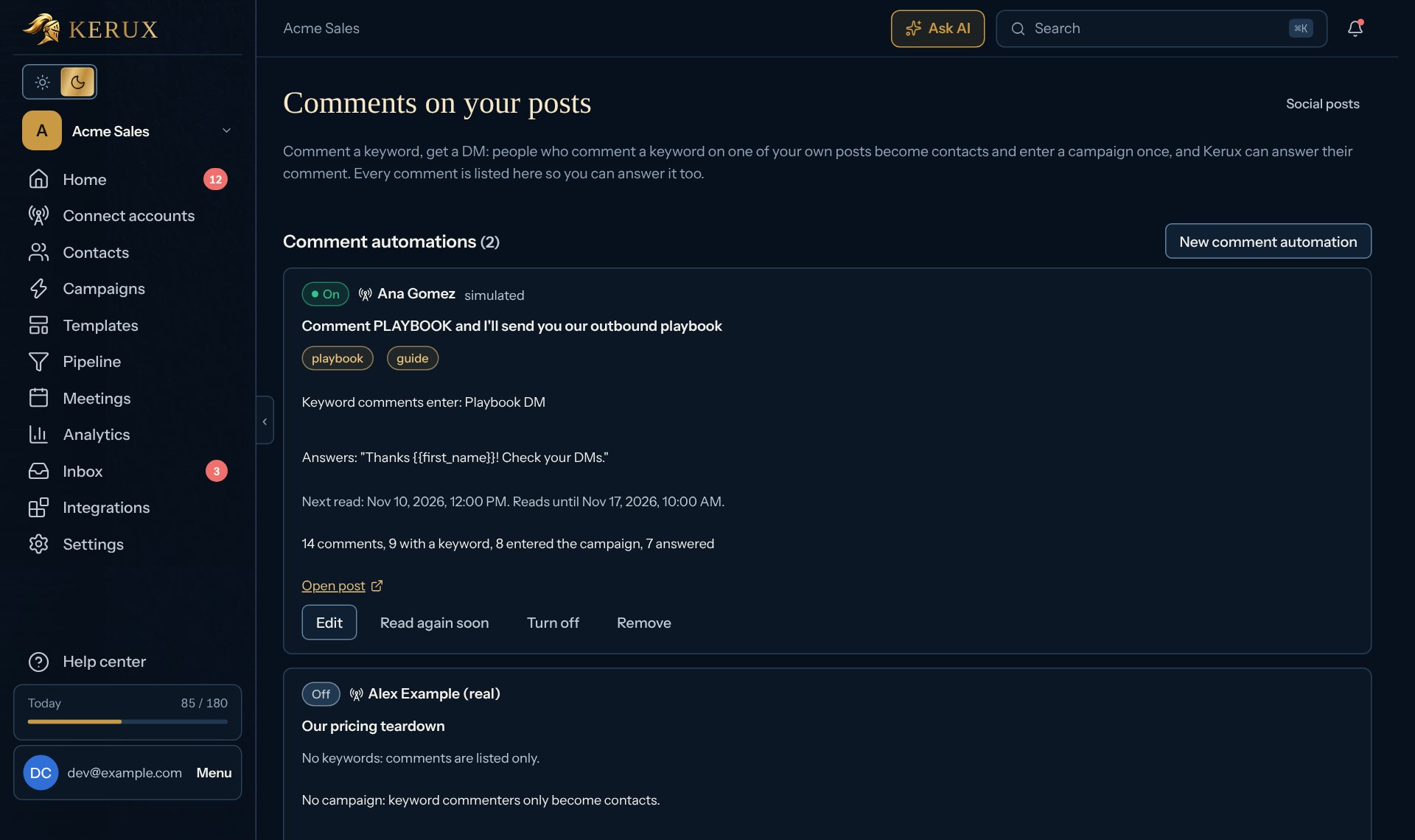
PLAYBOOK). When someone comments one of them, they become a contact and enter the campaign you chose, once. The campaign’s own steps then send the DM, or the invitation first if you aren’t connected yet, with all of the account’s usual limits. Kerux can also answer their comment for you, at a human pace. Every comment on the post is listed so you can answer it too, with Reply with AI if you want.
Find it in Campaigns > Social posts > Comments on your posts, or click Comment automation: comment a keyword, get a DM under a published post. Owners, admins and members can set it up and answer comments; viewers can see them.
Answering comments isn’t available yet. Until it is, Kerux reads the comments, and keyword commenters become contacts and enter the campaign (its own steps send the DM), but nothing answers their comment: Turn on stays grayed out while Answer their comment automatically is ticked, and Answer is grayed out under each comment. The page says Answering comments from real LinkedIn accounts is being switched on.
Set it up
1
Pick the post
Under Your post, choose a LinkedIn post you published from Social posts. For a post you published on LinkedIn yourself, choose Another of my posts (paste its link), pick the account and paste the post’s link: Kerux checks it is one of that account’s own recent posts. Other people’s posts can’t be used.
2
Add keywords
Type the words, separated by commas (up to 10). Case and accents don’t matter, and only whole words count:
guide matches “Guide please!” and “GUÍDE”, not “guidebook”. Without keywords, the comments are only listed.3
Choose the campaign
Under Campaign they enter, pick the campaign that sends the DM. Each person enters once, even if they comment the keyword twice. A campaign that isn’t launched yet keeps them waiting in its Contacts tab until you launch it.
4
Answer their comment (optional)
Once answering is available (see the note above), tick Answer their comment automatically and write the answer, for example
Thanks {{first_name}}! Check your DMs. Variables are filled in for each person; an answer with an empty variable is never sent (it waits for you under Needs a decision).5
Turn it on
Click Turn on. Kerux reads the post’s comments in the next minutes.
How the post is read
Kerux reads the post with a signal on the same account (the post’s own watch, or a new one that counts toward the account’s 5 active watches), so it shares the signals’ limits: at most 8 reads a day per account, only in the daytime, every 2 hours while the post is fresh (its first 48 hours) and then once a day, for 7 days (or until you stop it). Read again soon moves the next read forward, within those limits. The people who react or comment also become contacts in the signal’s list, as with any signal.The comments list
Each comment shows who wrote it (with their LinkedIn profile), what they said, the keyword it had, what happened (Entered the campaign, Waiting for the campaign’s launch, Already entered this campaign) and Kerux’s answer. Use the filters All, With a keyword, To answer and Needs a decision. Comments you haven’t seen yet are marked New, and the button on Social posts shows how many there are. To answer a comment yourself, click Answer, write it (or click Quick answer, or Reply with AI to get a draft from the comment), then Send answer. It goes out within a minute or two. Stop answer stops an answer that hasn’t gone out yet.Safe by design
- One answer per person per post, and at most 20 answers a day per account (in the account’s timezone), automatic and by hand together.
- A human pace. An automatic answer waits a few minutes after Kerux sees the comment, answers from the same account are minutes apart, and automatic answers only go out in the account’s working hours.
- Never answered twice. If LinkedIn’s answer gets lost, the comment shows Needs a decision with LinkedIn’s answer was lost. Kerux is reading the answers under the comment to see if it went out while Kerux reads the answers under it. Found: it is marked answered. Not found after three checks: Kerux asks you. Look under the comment on LinkedIn, then click It’s on LinkedIn, Send again (only if it isn’t there) or Don’t answer.
- People on the do-not-contact list never get an answer, and campaigns skip them.
- Turning an automation off (or removing it) stops the answers still waiting. Its comments stay in the list.
Why an answer didn’t go out
API and webhooks
Everything here is also in the API under Comment automation (/v1/comment-automations and /v1/post-comments): set up, change, read again, remove, list comments, answer, stop an answer and decide about one being checked. The webhooks linkedin.post_comment_received, linkedin.comment_keyword_matched, linkedin.comment_reply_sent and linkedin.comment_reply_failed fire when a comment arrives, when it had a keyword, and when Kerux’s answer goes out or can’t.