

What you see
- A bar at the top of the app: LinkedIn asked to verify … with an Open LinkedIn link.
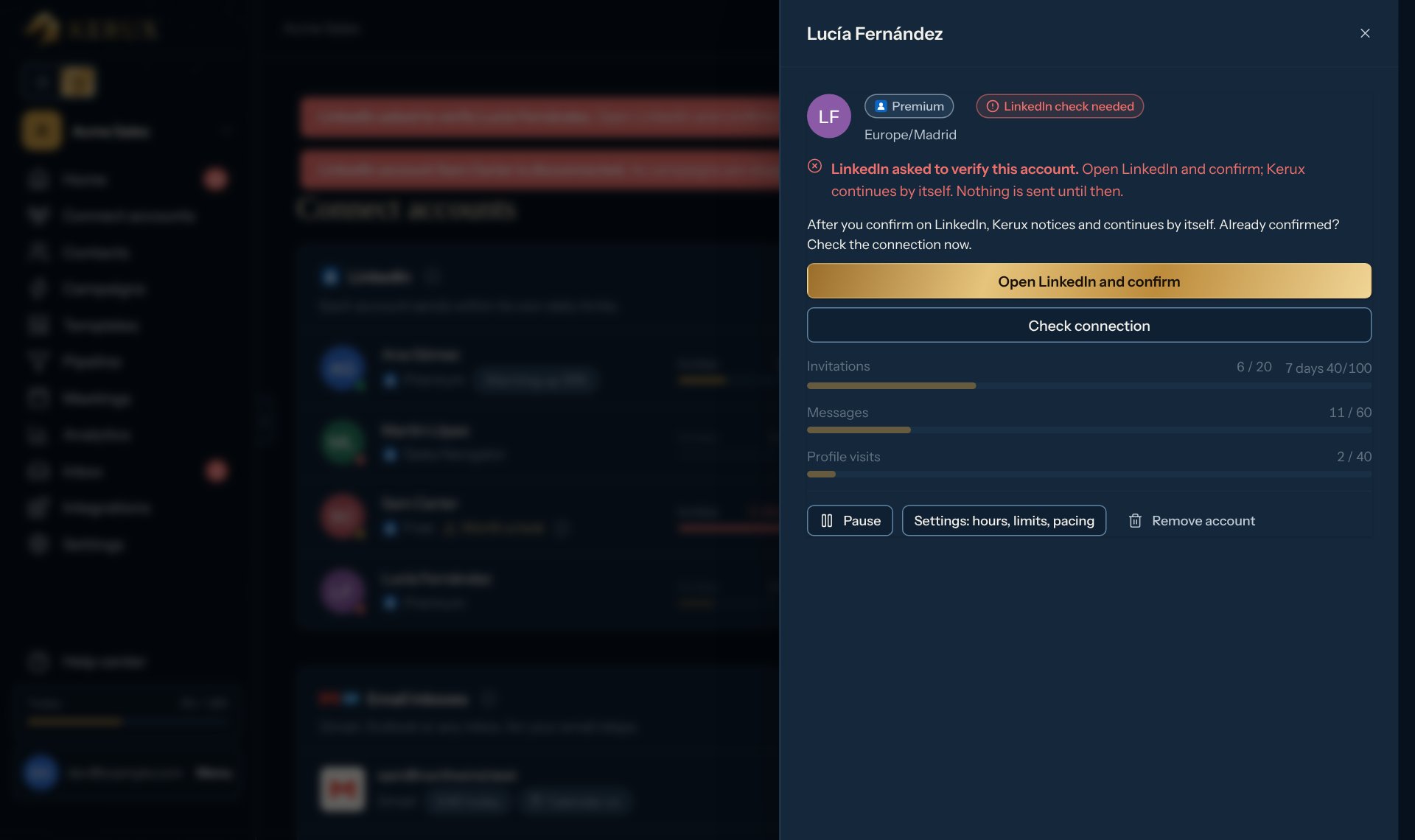
- Under Connect accounts: the account’s row says Needs attention with a red dot and a Fix button. Fix opens its side panel with a LinkedIn check needed badge, LinkedIn asked to verify this account., an Open LinkedIn and confirm button and a Check connection button.
- A notification in My tasks, and an email to whoever connected the account and to the workspace’s owners and admins.
- Contacts waiting for that account show Paused: LinkedIn asked to verify the account. Open LinkedIn and confirm; Kerux continues by itself, with an Open Connect accounts link.
Fix it
1
Open LinkedIn
Click Open LinkedIn in the bar or Open LinkedIn and confirm in the account’s panel (Fix on its row), or open the LinkedIn app on your phone.
2
Confirm it's you
Follow LinkedIn’s steps (a code, an approval, a check).
3
Wait for Kerux to continue
Kerux notices when LinkedIn lets the account in again and continues by itself: the bar goes away, you get a “back to normal” notification and email, and every campaign continues where it stopped. If LinkedIn’s all-clear gets lost on the way, Kerux checks the account again every 30 minutes. To check right away, click Check connection in the account’s panel (Fix on its row).
4
Still locked after a day?
If the account is still locked a day later, the panel also shows Still locked after a day? with Reconnect, to connect the account to Kerux again.
Nothing is lost and nothing is sent twice. Contacts keep their place. Something that was already done (an invitation, a message) is never done again; Kerux only continues with what was still waiting. If a message was leaving at the very moment of the lock, Kerux checks LinkedIn before deciding, as always.
Other problems an account can have
When only Sales Navigator or Recruiter is down and normal LinkedIn works, the account keeps sending messages and invitations.
Accounts connected with Email, password and 2FA key sign back in by themselves when LinkedIn logs them out, but not while LinkedIn asks to verify them: signing in again wouldn’t help, only your confirmation does.
Tell your team in Slack
Slack is part of Pro and Agency (and the free trial). On every plan, Kerux also tells you in My tasks and by email (see above).- Open a campaign for this (for example “Account alerts”) and go to its Triggers tab.
- Click + Add, pick Kerux event, choose LinkedIn account needs attention and click Add trigger. Under Problems, leave everything unchecked for any problem, or check only the ones you care about.
- Add a Notify on Slack step. These variables say what happened:
{{trigger.account_name}},{{trigger.account_problem}}and{{trigger.account_fix}}. - Turn on Allow re-entry in the campaign’s Settings, so every new problem starts a run.
- Launch the campaign. Until then, runs wait under Waiting for launch.
linkedin-account. Use team steps (like Notify on Slack) in this campaign, not LinkedIn steps. See Kerux events.
With the API
GET /v1/senders returns each account’s problem (kind: locked, restricted, signin, removed or down, its cause and since), and the webhook event sender.status_changed tells your systems when an account needs attention or is back to normal.