

Pro plan. Lead Ads are part of Pro and Agency (and the free trial). Lead Ads triggers you already have keep adding contacts on every plan. See Plans and billing.
Direct connect isn’t available yet. Until it is, Connect on the Facebook / Instagram row opens a side panel with the Zapier or Make steps. Click Tell me when direct connect is ready in that panel to be told when it is. Contacts you bring in through Zapier or Make keep working after that, and you can switch whenever you like: a contact that arrives both ways is added once.
Connect through Zapier or Make
Only workspace owners and admins can do this, and only they see the secret URL. Members see Ask an admin on the row instead (and Ask a workspace admin to connect Facebook / Instagram. in its panel).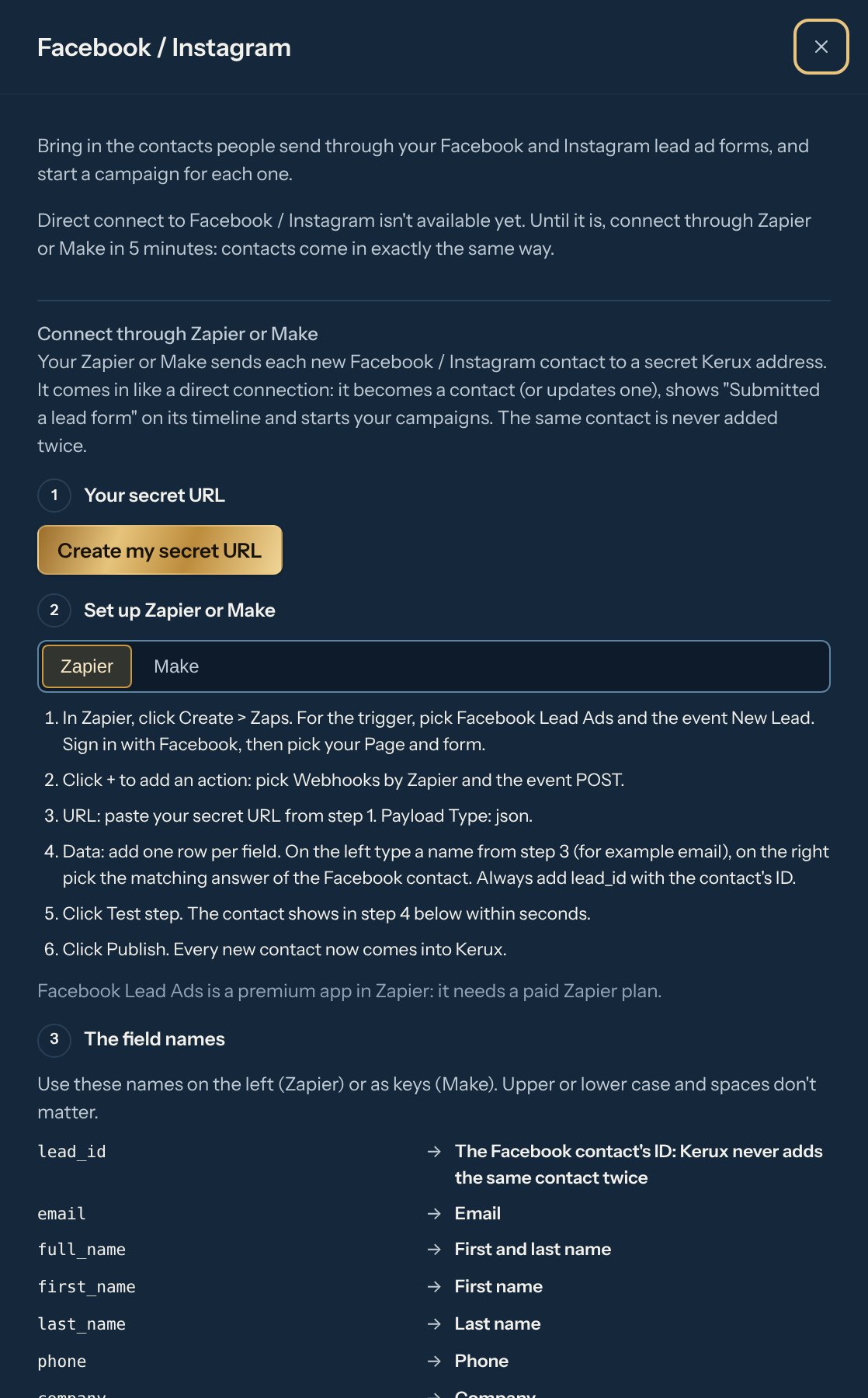
1
Get your secret URL
Go to Integrations > Connections. In Contact sources, click Connect on the Facebook / Instagram row: a side panel opens with the steps. Click Create my secret URL, then Copy. Keep it private: anyone with this URL can add contacts to your workspace. If it leaks, click Make a new URL (the old one stops working at once) and paste the new one in your Zap or scenario.
2
Set up Zapier or Make
Follow the steps for your tool below. The panel shows the same steps, with a Zapier and a Make tab.
3
Send a test contact
Submit a test contact (Facebook’s Lead Ads Testing Tool sends one) or use your tool’s test button. Step 4 in the panel changes from Waiting for your first contact to how many contacts came in and when. The page checks by itself for 5 minutes; after that, click Check again.
4
Start a campaign from a lead form
Open your campaign, go to its Triggers tab and click + Add > Lead form submitted and pick Facebook / Instagram as the Source. Pick Any page (every contact that comes in), or a Page and its forms once a contact from them has arrived. Click Add the trigger.
Zapier
- In Zapier, click Create > Zaps. For the trigger, pick Facebook Lead Ads and the event New Lead. Sign in with Facebook, then pick your Page and form.
- Click + to add an action: pick Webhooks by Zapier and the event POST.
- URL: paste your secret URL. Payload Type:
json. - Data: add one row per field. On the left type a name from the table below (for example
email), on the right pick the matching answer of the Facebook contact. Always addlead_idwith the contact’s ID. - Click Test step, then Publish.
Make
- In Make, click Create a new scenario. Add the Facebook Lead Ads module that watches new contacts (Watch Contacts). Sign in with Facebook, then pick your Page and form.
- Click + to add a module: pick HTTP, then Make a request.
- URL: paste your secret URL. Method:
POST. Body type:Application/x-www-form-urlencoded(a JSON body works too). - Fields: add one item per field. Key: a name from the table below. Value: the matching answer of the Facebook contact. Always add
lead_idwith the contact’s ID. - Click Run once, send a test contact, then turn the scenario on (Immediately as data arrives).
The field names
Upper or lower case and spaces don’t matter (Lead ID and lead_id are the same).
Without
lead_id, Kerux still recognizes a repeat when the same answers come again on the same form, but sending the ID is safer.
Connect Facebook directly
When Connect on the Facebook / Instagram row opens Facebook:1
Connect Facebook
Go to Integrations > Connections and click Connect on the Facebook / Instagram row. Facebook opens: sign in, choose the Pages Kerux may use and click Continue or Save. Only workspace owners and admins can connect Facebook. You need to be able to advertise for the Page (its admin, or someone with the advertiser task).
2
Pick the Pages whose contacts come in
Back in Kerux, the Facebook / Instagram panel opens with your Pages. Tick the ones whose contacts you want and click Save Pages. Instagram lead ads run from a Facebook Page, so picking the Page brings its Instagram contacts too.
3
Start a campaign from a lead form
Open your campaign, go to its Triggers tab and click + Add > Lead form submitted and pick Facebook / Instagram as the Source (or use the start box of the Builder). Pick the Page (or Any page), then Every form of this Page or only some forms. Kerux shows where each answer of the form goes on the contact. Click Add the trigger.
Where the answers go
Someone who is already one of your contacts (same LinkedIn profile or same email) is updated with what they filled in: empty fields are filled, nothing you typed is overwritten. The contact’s history shows Submitted a lead form with the form and ad.
Contacts without a LinkedIn profile
Lead forms often don’t ask for a LinkedIn profile. Those people still become contacts and enter the campaign: Slack, webhook and other non-LinkedIn steps run right away. A LinkedIn step waits with No LinkedIn profile for this contact in Home > Tasks. Open the contact, paste their LinkedIn profile in LinkedIn and click Save: the LinkedIn step goes on by itself.Reconnect, turn off or disconnect
- Zapier or Make: Make a new URL replaces the secret URL; Turn off stops contacts from coming in that way. Your campaign triggers stay.
- Reconnect Facebook if it asks you to (for example after you changed your password or removed Kerux in Facebook). Your Pages and triggers stay as they were.
- Disconnect stops new contacts from your Pages and deletes the access Kerux kept; the row then says Not connected. Contacts already in Kerux stay.
- You can also remove Kerux in Facebook (Settings and privacy > Settings > Business integrations) and ask Facebook to delete your data: Kerux deletes everything it kept for your Facebook account. See the privacy policy.
For developers
The secret URL takesPOST with a JSON or form body: one contact, an array of up to 25, or { "leads": [...] }. It answers 200 with each contact’s status (accepted, duplicate, in_progress, skipped or failed), 401 for a wrong or replaced secret, 413 for a body over 256 KB, 422 when there are no answers or more than 25 contacts, 429 after 60 requests a minute and 503 when Kerux couldn’t save it (send it again: it is never added twice). The API has the same URL at GET, POST and DELETE /v1/integrations/lead-form-relay/meta.
Common problems
Connect opens the Zapier or Make steps, not Facebook
Connect opens the Zapier or Make steps, not Facebook
Direct connect isn’t available yet. Use the Zapier or Make steps in the panel meanwhile, and click Tell me when direct connect is ready.
Zapier or Make says 401
Zapier or Make says 401
The secret URL is wrong or was replaced with Make a new URL. Copy it again from the Facebook / Instagram panel (click Facebook / Instagram on its row) and paste it in your Zap or scenario.
Zapier or Make says 422
Zapier or Make says 422
The body had no answers. Check the Data rows (Zapier) or Fields (Make): at least
email or full_name, plus lead_id.My Page isn't in the list
My Page isn't in the list
Through Zapier or Make, a Page shows once a contact from it arrives with
page_id; until then pick Any page. Connected directly, Kerux only sees Pages you can advertise for, and the ones you allowed when Facebook asked. Check your role on the Page in Facebook, then click Reconnect and make sure the Page is ticked on Facebook’s screen.Facebook refused some Pages when I saved them
Facebook refused some Pages when I saved them
Facebook didn’t let Kerux receive that Page’s contacts, usually because of your role on the Page. Fix it in Facebook and save again.
A new contact didn't arrive
A new contact didn't arrive
Through Zapier or Make, check the Zap’s or scenario’s history for an error, and that it’s on. Connected directly, check that the Page is ticked in Connections. Either way, check that the campaign’s trigger uses that Page (and form) or Any page. Contacts from a form you didn’t pick still become contacts but don’t enter the campaign. If Facebook doesn’t answer, Kerux tries again for a day before it gives up.