

See your account type and credits
Open Connect accounts, click Manage on the account’s row, then Settings: hours, limits, pacing. The InMail card on that page says how it works (Kerux reads how many credits are left about once a day and never sends an InMail without one; contacts wait and go on by themselves when credits are back) and shows: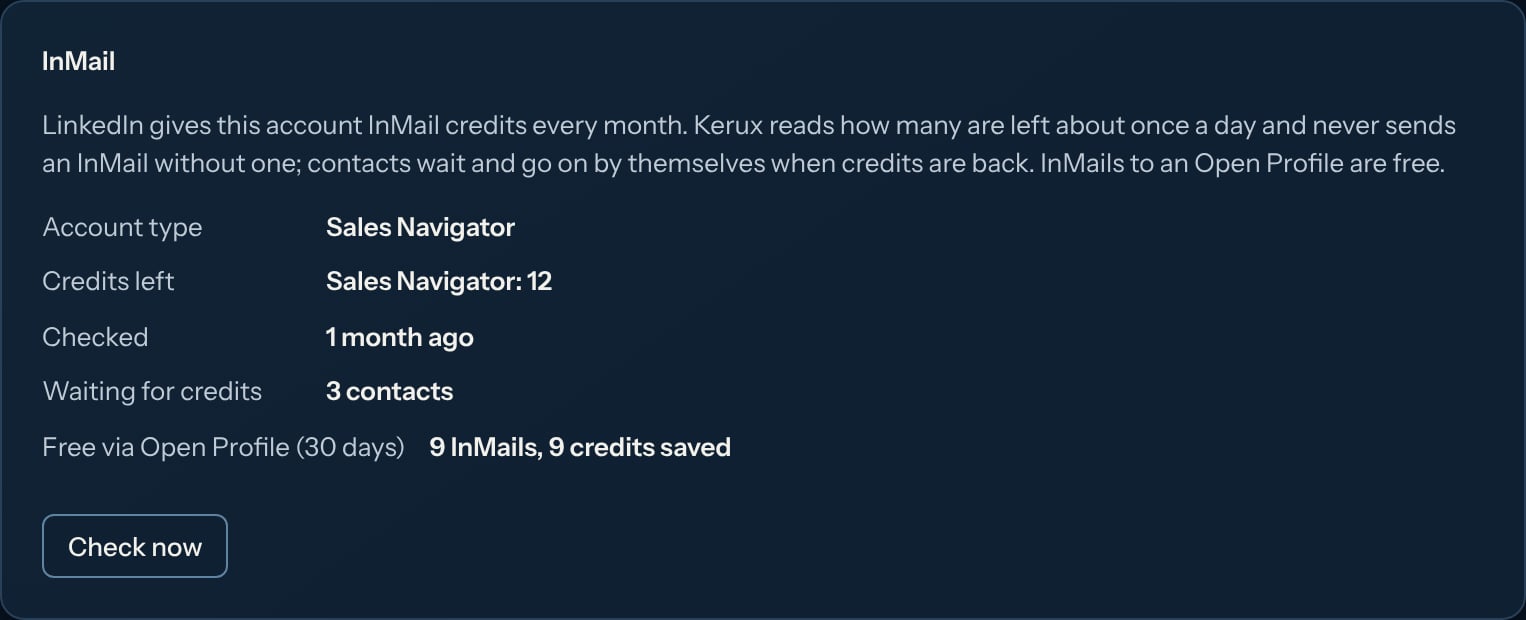
- Account type: Free, Premium, Sales Navigator or Recruiter. Kerux reads it from LinkedIn when the account connects, and again when you click Check now.
- Credits left: how many InMail credits LinkedIn says the account has. Kerux reads them by itself once a day (every 6 hours while InMails are queued, every 3 hours while contacts wait for credits), in the account’s daytime, and counts down every InMail it sends in between. Check now reads them right away (once every 10 minutes at most). Checked says when they were last read.
- Waiting for credits: contacts whose InMail waits because there are none left.
- Free via Open Profile (30 days): InMails sent free in the last 30 days, and the credits that saved.
Before you launch
The launch check says what the campaign’s InMail steps may need:- each InMail step: up to how many InMails if every contact takes that path, and how many contacts have an Open Profile (free);
- each sending account: its type and its credits left, or “InMail credits unknown” (its (i) says to open the account and click Check now; Fix opens it);
- a warning when the campaign may need more InMails than the accounts have credits (shown once every account’s credits are known).
When credits run out
Kerux never tries to send an InMail without a credit. The contact waits on the step with Waiting: the LinkedIn account has no InMail credits left, and its history says Waiting for InMail credits. Nothing is sent twice. When you have credits again (LinkedIn refills them monthly, or you can buy more on LinkedIn), Kerux sees it at its next read (every 3 hours while contacts wait) and the waiting InMails go on by themselves. To go on right away, open the account and click Check now. Each contact’s history says InMail credits are back: the step goes on.Open Profile (free InMail)
Some Premium members have an Open Profile: anyone can InMail them for free. Kerux reads it from the person’s profile (or from your search results) before the InMail goes, and sends free InMails without using a credit, even when none is left.- In an InMail step, tick Only free InMails (Open Profile members) to send only free InMails; anyone else leaves through not allowed.
- To branch on it, add Conditions > Contact actions > Has an Open Profile (free InMail). Put a Visit profile step before it so Kerux has read the profile.
Limits
Each account sends at most 20 InMails a day and 150 a week by default (you can raise them up to 50 a day and 180 a week in the account’s settings). The weekly limit keeps you under the roughly 800 free Open Profile InMails LinkedIn allows a month; paid InMails are limited by your credits. InMails go out in the campaign’s sending hours, spaced like every other action.Ready-made campaigns
In Campaigns > New campaign > Build it myself > From a template (click Browse templates), under Book meetings:- Connect, then InMail if they don’t accept: a visit and an invitation; if they accept within 7 days, a thank-you message; if not, an InMail instead. Change the 7 days on the invitation step (Wait for an answer up to).
- Open Profile first: free InMail, invite the others: a visit, then a free InMail to people with an Open Profile and an invitation (then a message) to everyone else.
- InMail, then connect: an InMail first, then an invitation a few days later.
Reply rates
In a day sequence, each InMail step (and its panel) shows how many were sent, replied to and seen, and how many went free. Analytics has an InMails sent card once you send InMails: how many, their reply rate and how many went free (Open Profile). InMails also count in Messages sent.Sales Navigator and Recruiter
When the account has Sales Navigator (or Recruiter), its InMails go through that product, with the subject on its own, and use that product’s credits.Building with AI
When you build a campaign with AI and ask for InMails, the builder knows whether any of your LinkedIn accounts can send them. If none can, it still adds the InMail step and its notes say so: change it to a Message for your connections, or connect a Premium account before launching. You can also ask for a branch like “InMail people with an Open Profile, invite the others”, or “send an InMail if they don’t accept within 7 days”. The AI writer drafts InMail subjects and texts too.Common problems
Credits show 'Unknown'
Credits show 'Unknown'
Kerux reads them by itself within a day; click Check now on the account page to read them right away. Until then Kerux still tries InMails, and a contact waits if LinkedIn says there are no credits.
Contacts wait for credits but I have some
Contacts wait for credits but I have some
Kerux reads credits again every 3 hours while contacts wait. Click Check now on the account page to go on right away.
InMails wait for the weekly limit
InMails wait for the weekly limit
The account sent its weekly InMails (150 by default, counted over the last 7 days). Contacts wait with The LinkedIn account used today’s budget; next free slot is coming and go on by themselves as older InMails leave the 7 days. To send more, raise the weekly limit (up to 180) in the account’s settings.
The last read of the credits didn't work
The last read of the credits didn't work
Kerux couldn’t read the credits from LinkedIn the last time it tried. It tries again later by itself; click Check now to read them right away.
Check now says to try again later
Check now says to try again later
Credits can be read once every 10 minutes per account. Wait a few minutes and click Check now again.