

1
Start a new campaign
Click Campaigns, then New campaign, and choose Build it myself or Create with AI (see below). Social posts, below them, opens the social posts calendar instead. Build it myself offers three ways: From scratch (give it a name), From a template (click Browse templates: they are grouped in sections by goal, Preview shows every step and message, and Use template creates it), or From a signal (people who react to or comment on a post).
2
Add steps
Click any + on a link or under a step, or Add in the tools row above the canvas. Add a step opens on the left with three tabs: Steps (LinkedIn, email, AI, timing, team and other steps), Conditions (ways to branch) and Automations (calls to other apps, like Sendspark). Search looks in all three. See Steps for what each one does.
3
Set up each step
Click a step to open its panel on the right: the message text, which result goes where, and Wait before this step (how long to wait before it runs). Messages can use variables like
{{contact.first_name}}.4
Check and launch
Your changes save by themselves. If the page reloads while you edit (for example during a Kerux update), your last change is kept. When it’s ready, add contacts and launch.
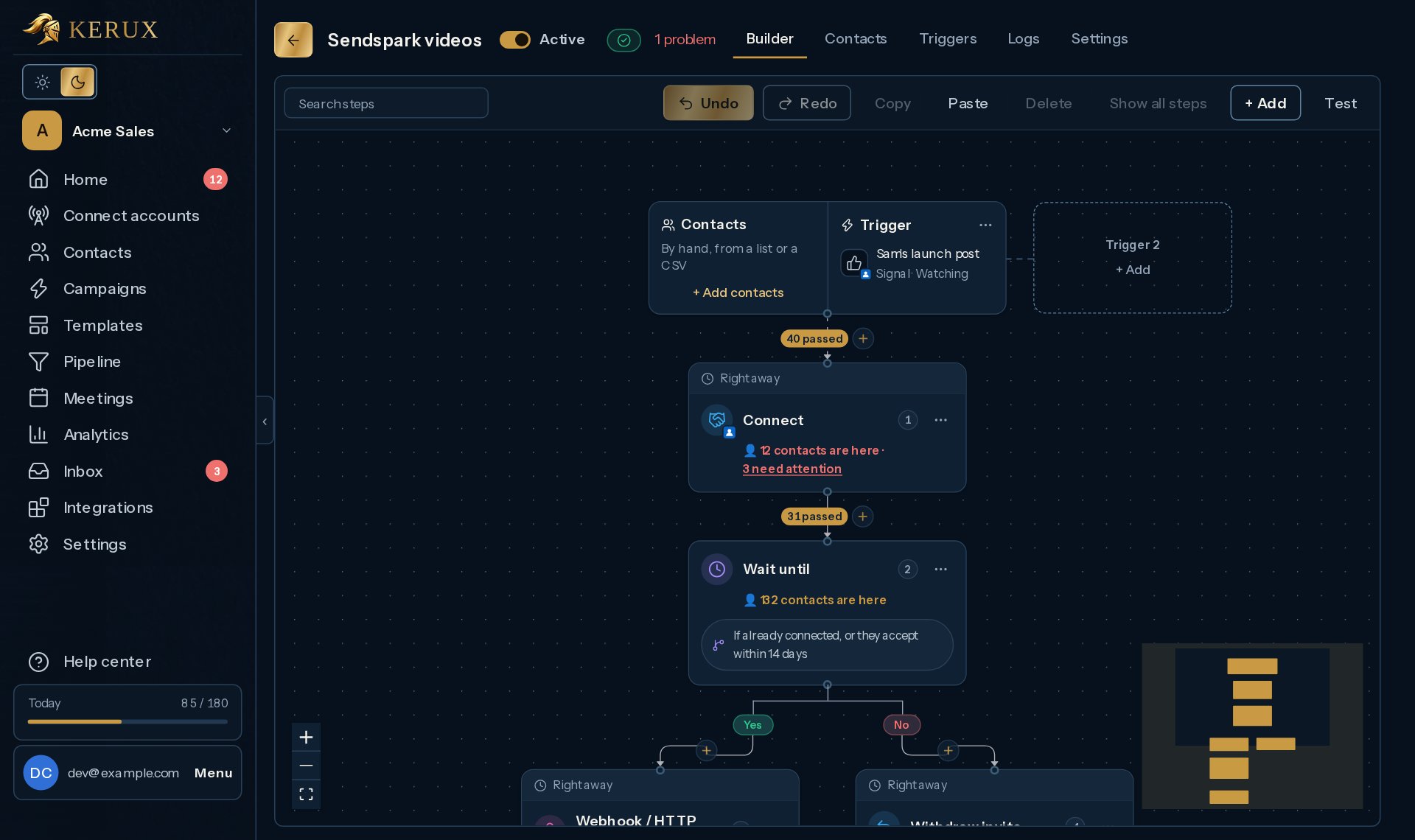
The start box: how contacts get in
Every campaign starts with a box in two halves:- Contacts: people you add by hand, from a list or a CSV. Click + Add contacts to add them (see Launch a campaign).
- Trigger: what starts the campaign. Click + Add and a panel opens on the right with every kind: the Manual trigger (the contacts you add, when you launch), a signal (people who react to a LinkedIn post), a Kerux event (a tag, a field change, a date, a schedule, a link click), or, for workspace owners and admins, a trigger URL, a form, a LinkedIn event or a Facebook / Instagram lead form (trigger URLs, forms and lead forms are part of Pro and Agency, and the free trial). An added trigger shows with Change and Remove in its … menu, and a grayed Trigger 2 box beside it adds another one. Everything added is listed in the campaign’s Triggers tab. See Campaign triggers.
Create with AI
Tell Kerux what you want and the AI builds the campaign for you to review. Nothing is sent until you publish and add contacts. Create with AI is part of the Pro and Agency plans (and the free trial); on Starter, build it yourself or start from a template. There are three ways to tell it:- Tell me what you want: write it, or click the microphone and say it (Chrome, Edge and Safari; the microphone listens in the app’s language).
- Ask me questions, in two levels:
- Easy: what you sell and your website (optional). The AI reads your public website and works out who to write to, what to offer and what to ask for. If the site can’t be read, it works from what you typed.
- Advanced: six short questions (who you write to, what you offer, what they should do, how people enter, tone and language, extra steps like a Slack notification).
- Build a lead form is coming soon: the AI will help you make a form, and whoever fills it in goes straight into the campaign.
- Start from a template: templates are grouped by goal (Playbooks, Reactivation, Automations, Book meetings, Warm up, Signals, Events, Your network, After a call). Pick one and you see how it runs, step by step: what starts it, each step with its day and its text, and for a branch what it checks (for example Did they accept the invitation in time?) with its If yes and If no steps. Add one line about your business and click Adapt it with AI, or Use it as it is, without AI to create it straight away.
What the AI adds by itself
Unless your description says otherwise, an outreach campaign built with AI gets the parts a good campaign needs, even when you only listed the steps:- A path for people who don’t accept (in an automation; a sequence has no branches): after 14 days without an answer the invitation is withdrawn, then a follow, a few days and a like, and their path ends (never a second invitation). Write “keep it simple” to leave it out.
- The reply box: when they reply at any step, they leave the campaign and Reply with AI drafts an answer for you to approve in the inbox, in your style’s tone. It answers by itself only if your description asks for it (“reply automatically”), and then only for clear replies (yes, a meeting, not now, someone else), after the reply delay. Write “no AI replies” to leave it out.
- Warm-up and timing for the style: a profile visit before the invitation (and a like for Gentle), and the days between messages from the style’s table. Exact days in your description are kept.
- At most 3 messages to a contact on any path, and at most 3 emails: extra ones are left out.
- A personal first line from Research with AI online when you ask for personalization, a Sendspark video when you name Sendspark or a personalized video (with a plain message if the video isn’t ready in time), and a voice note when you ask for one (you record it in the step).
- if the AI couldn’t answer at that moment, that the campaign was built from the words in your description (check each step and its texts);
- how many steps it built, and under What it couldn’t do, anything from your description it couldn’t turn into a step;
- under Added by good practice, what it added or adjusted for you (see above);
- Before you continue, connect Slack (or another service) when a step needs a connection you don’t have yet, with a button to connect it; after connecting you come back to the campaign;
- Finish the Slack step when the step needs something the AI didn’t know (like who to send it to): Finish setting it up opens the step’s panel on the right, with what the AI wrote already filled in; once it’s filled in, it leaves the notes;
- how people enter. A LinkedIn event (someone views your profile, a new connection, a new follower…) is added as the campaign’s trigger right away, for all your LinkedIn accounts: it shows on the start box. A Kerux event (a tag added, a date like a birthday, a schedule…) is added the same way when your description says enough; if it’s missing something, the notes say what (Still needed: which tag, which field or the link’s address) with Set it up in Triggers. A trigger URL or a form has a link to set it up in Triggers.
Playbooks
The Playbooks section of the template library has eight ready automations, adapted from the most used outreach workflows. Facebook contact: video, WhatsApp and LinkedIn in minutes is marked Coming soon and can’t be used yet. Every text is a starting point you can edit; none sends more than 3 messages to a contact, and every wait is in days, within your LinkedIn accounts’ limits. Each card says what it Needs before it can run:
Video after they accept, LinkedIn, then email, Event follow-up, Reply-aware nurture and Facebook contact: video, WhatsApp and LinkedIn in minutes use steps that are part of Pro and Agency (Sendspark, email, webhooks, Slack). On Starter you can open and edit them, but turning them on says This is part of Pro with an Upgrade to Pro button. See Plans and billing.
In every playbook, whether you use it as it is or adapt it with AI, people who don’t accept the invitation within 14
days get a follow, a few days and a like, never a message or a second invitation. Then their path ends, except in
LinkedIn, then email, where they go on to the email part. In Event follow-up only priority people get an
invitation. Each card says this under its description, and so do the notes on a campaign you create from it as it is. After Use template,
the notes on the left say what’s left: Before you continue, connect
Sendspark, Finish the Sendspark step, Record your voice note before you launch (open the Message step that
mentions it and click Record a voice note) or Pick the post or company page whose engagers enter this campaign (with a Pick the signal button).
Reactivation
The Reactivation section wakes up people you already know:
LinkedIn messages only reach your 1st-degree connections. To send one message to many people at once, use a broadcast.
Useful tools in the builder
- The tools row above the canvas: Search steps, Undo and Redo, Copy and Paste of steps (also between campaigns), Delete, Show all steps and Test (try the launched campaign on one contact, see Test with one contact).
- To remove a link between two steps, click the line first, then click Remove this link. Undo brings it back.
- Click a step to open its panel on the right, with the step’s mark and name on top. It reads top to bottom in numbered sections: the step’s own settings (for a Slack step: the Account, or Connect Slack when none is connected, then Send to and Message), Handle missing data (what to write when a contact has no value for a variable; left empty, a contact field uses your workspace’s default, for example “there” for a first name, see Variables), Wait before this step and Test and run (Test this step or Test from here). Below them, Contacts on this step (closed until you click it) shows who is there right now.
- In a step that sends a message (LinkedIn message, invitation note, InMail, email, WhatsApp, SMS), the Message is open and first (for an email: Send from and Subject come before it). Every other section is one line with what it’s set to and a mark: a green check when it’s complete, a red mark when something it needs is missing (for example no inbox connected). Click a line to open it. The (i) next to Message explains what Kerux checks before sending (consent, unsubscribe link, hours). Preview shows the message for one of your contacts, with empty variables in red. Clicking the wait on a step’s card opens the step on its Wait before this step.
- Step key and all settings (JSON) (closed until you click it) holds the less common settings: the step’s key, its JSON and, for steps with several results (for example Connect: accepted / not accepted), Continue to the same next step whatever happens. At the very bottom, Comment is a note for your team, shown on the step, never sent to contacts.
- Duplicate a whole campaign from the … menu in the campaigns list.
- In the campaigns list, the Created by column shows who made each campaign, with their photo. Use the Created by filter to see Everyone, Me or one teammate.
Common problems
A step shows a red problem
A step shows a red problem
The step is missing something (for example, an empty message). Click it: the panel says what to fix.