Pro plan. Trigger URLs, hosted forms, surveys, quizzes and their QR codes are part of Pro and Agency (and the free trial). On Starter, making a new one (on Developers, on a campaign’s start box or in its Triggers tab) shows Part of Pro: Trigger URLs and forms with an Upgrade to Pro button. The ones you already have keep adding contacts and can still be edited. See Plans and billing.
Incoming webhook (API)
Another app (Clay, Zapier, Make, n8n…) sends contacts to a URL and they enter the campaign.1
Add the trigger URL
Open the campaign. Click + Add on the Trigger half of the start box (or in the campaign’s Triggers tab), then Incoming webhook (API).
2
Copy the link
Open the Triggers tab, click Copy link next to it and paste it in the other app as a POST webhook, with the contact’s data (at least the LinkedIn profile URL) as JSON. Contacts are matched by LinkedIn URL and never added twice.
Form submission
A Kerux form: whoever fills it in enters the campaign. Add it the same way and choose Form submission, then click Open in the Triggers tab to see and share the form. The LinkedIn profile URL is always asked: it’s how Kerux knows who the person is. A Wait for webhook step can also collect answers with a Kerux form in the middle of a campaign: each contact gets their own link. A form can also ask questions with answers to pick (single or multiple choice, dropdown, rating, yes / no), show one question per page, and be a quiz whose score the campaign branches on. See Surveys and quizzes.QR code for a form
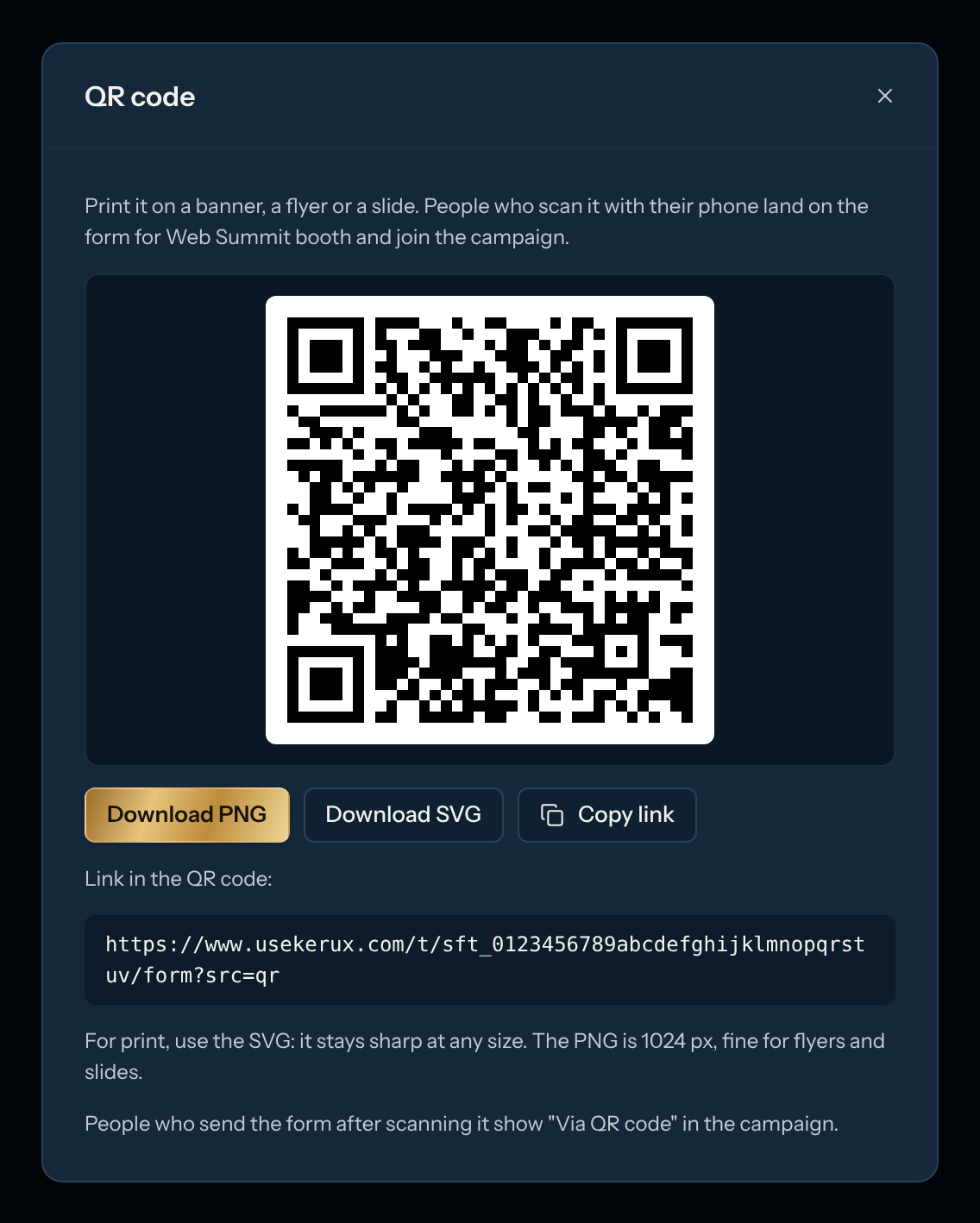
Print a form’s QR code on a booth banner, a flyer or a slide: people scan it with their phone, land on the form and enter the campaign when they send it.1
Open the QR code
In the campaign’s Triggers tab, click QR code next to the form (or in Integrations > Developers > Trigger URLs, under a trigger with a live form).
2
Download it
Click Download SVG for print (it stays sharp at any size, even on a banner) or Download PNG (1024 px, fine for flyers and slides). Copy link copies the address the QR code opens.